The
function is no longer realized in a separate tool like the docpush.exe in FAST
for SharePoint 2010. The function would be integrated as part of the SharePoint
2013 Search REST API. So there is a good changes that it also comes for
SharePoint online. Locking forward what that all could mean for missing option
to create own content sources for SharePoint Online. Stay patient. News are
coming up soon.
Posts mit dem Label FAST Search werden angezeigt. Alle Posts anzeigen
Posts mit dem Label FAST Search werden angezeigt. Alle Posts anzeigen
Sonntag, 9. März 2014
Future of DocPush feature in SharePoint 2013
One of the
most missing features in SharePoint Search is the option to push content direct
to the index. In FAST ESP we have that functionality. Within FAST for
SharePoint 2010 there was a tool called docpush.exe. Using this tool you can
push content to the index. But this tool was not designed for productive use.
There were several problems around this. For example if you push a document
direct to the index using this tool and the crawler catches it also you have
duplicates. During SPC14 the information came up that a push functionality for
SharePoint 2013 search was already on the roadmap for SP1. Because of some unsolved
problems it did not come with SP1. But this means it’s no longer a question if
this function is coming – it’s only the question when it comes.
Mittwoch, 5. Dezember 2012
Office 365 - upgrade to SharePoint 2013 Search Problems
Actually
the first O365 tenants are updated to SharePoint 2013 backend components in the
background. This results in some technical difficulties. One is the Search. The
SharePoint 2013 Search Engine based on a new / upgraded Search Backend system. The
FAST Engine had a big impact in all the new functions and features. More details
can be found here: http://nbsharepointtalk.blogspot.de/2012/07/whats-new-within-sharepoint-2013-search.html
.
If your
tenant is updated to the new backend system but your frontend is still SharePoint
2010 you have some loosing. The point is that a lot of keyword calls not
working anymore. For example: Path:"Posts" AND
-Path:"personal" (meaning: show all which contains “Posts”
but not contains “personal” in result it shows blogposts but not posts from
blogs hosted in MySites). The reason is that the Managed Property “Path” no
longer exists in the new Search Engine. It is replaced by ”SPSiteUrl” and so on….
Another point is, that the new Keyword Query Language and also FAST Query
Language which is now supported in SharePoint 2013 cannot full functionally be
used with the SharePoint 2010 UI, even the search backend is upgraded. This is
because the SharePoint 2010 Webpart are not able to handle search term like
author:starts-with("Nicki").
So this is a poor interims situation at the moment. But the complete update is
availible soon ;-) and then we can use the full functionality of the new Search
Engine.
Dienstag, 24. Juli 2012
What’s new within SharePoint 2013 Search? – PART II
PART II: What happens with
FAST in SharePoint 2013
Future of FAST ESP: See this statement from Rob Va from July 16: http://social.technet.microsoft.com/Forums/en-US/fastinternetesp/thread/86e5e64f-1fd0-4ee4-a025-1dea0f1693df


(Concern that this is BETA stuff. Features and
functions can be changed or shift until the final release!)
Fact 1: In SharPoint 2013 the two Search Engines “SharePoint
Search” and “FAST Search Server for SharePoint” was combined in one Search
Engine.
Fact 2: FAST as a standalone product is still available and
supported. Details see here: http://support.microsoft.com/lifecycle/search/default.aspx?sort=PN&alpha=fast
Future of FAST ESP: See this statement from Rob Va from July 16: http://social.technet.microsoft.com/Forums/en-US/fastinternetesp/thread/86e5e64f-1fd0-4ee4-a025-1dea0f1693df
Mostly all the
features / functions that we know from FAST Search Central Admin sites had been integrated in Enterprise Search in
SharePoint 2013:

Let’s have a look at
the feature and functions level:
Managed Properties:
The technique with
crawled properties and managed properties was similar in SharePoint Enterprise
Search and FAST Search Server for SharePoint. But with FAST we had additional configuration
options:
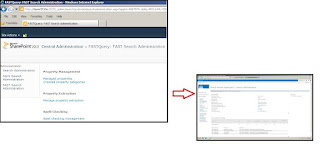
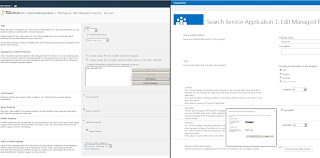
The functions / fields: Name, Type and Mappings to Crawled Properties were the same in both SharePoint 2010 Search Engines.
The
features Sort Property, Query Property, Refiner Property and Full-text Index
Mapping moved into the new Managed Property
configuration:

There are
some more options in the new SharePoint 2013 Managed Property configuration,
but this will be part of “Part IV:
Admin Stuff”.
Crawled
Properties:
Crawled
Properties are the same in FAST, Enterprise Search, and SharePoint 2013 Search.
Managed
Property Extraction:
This section
was completely reworked. In FAST 2010 we have to work with some PowerShell
calls like: Get-FASTSearchResource dictionaries\spellcheck\sk_spell_iseck_en.txt and dictionary files based on an
XML structure to include new terms. In SharePoint 2013 this feature used the
Managed Metadata / Termstore to handle the term / dictionaries for company
individual property extraction:

You can see
that the function for ignore list and spell checking also moved to the Termstore. In detail we will have a look at this in Part III.
FAST
Service Application:
So in
fact only one integrated Search Engine left we didn’t have to configure the
different Shared Service Applications for FAST Contend and Fast Query as we
have to in SharePoint 2010:

Query
Language / FAST Query Language:
FAST
brings his own Query Language which was just different / extended from the
SharePoint Search Query Language. Some of its characteristics are now found
into Search Query Language. For example the XRANK Operator:
In SharePoint Server 2010, the XRANK operator
was available only with FAST Query language (FQL). The XRANK operator provides
dynamic control of ranking.
SharePoint
2013 Search does not longer support SQL syntax. Search in SharePoint 2013 supports
FQL syntax and KQL syntax for custom search solutions.
For more
details about building Search Querys ins SharePoint 2013 Search have a look
here:
FAST
Stuff:
FAST
stuff and FAST specific components like the “extended WebCrawler” or commanding
tools like indexerinfo.exe are no longer part of SharePoint, at least
not part of the SharePoint 2013 Preview version.
Developing custom connectors / crawler is now standardized.
Content Processing:
In FAST for SharePoint 2010 we had the Advanced Content Processing Pipeline
architecture:

In SharePoint 2013
this is part of the common Search Architecture.
Next parts in this
series:
Part III: A look in the deep
what’s behind the new Search functions like “Search Dictionaries”, “Query
Builder”, “Query Client Type”
Part IV: Admin Stuff
Part V: Frontend Stuff
Dienstag, 3. Januar 2012
Webcasts from CollabDays 2011 online
My sessions from last year Collaboration Days are online…:
(Click to open / Silverlight needed)
All sessions overview:
Montag, 5. Dezember 2011
Dienstag, 29. November 2011
Session stuff: Unleash the Power of SharePoint Search with Powershell
Here are the scripts from my PowerShell session at Collaboration Day 2011….:

#Unterschiede zwischen Search und FAST cmdlets:
get-help get-FASTSearchMetadataManagedProperty -examples
get-help get-SPEnterpriseSearchMetadataManagedProperty -examples
#Überblick verschaffen mit:
Get-SPSearchService | select *
Get-SPSearchServiceInstance | select *
#Ping the Search / FAST mit (Send a request to the default content distributor):
Ping-SPEnterpriseSearchContentService -HostName "demo2010a.contoso.com"
#Übersicht über alle Search Applications:
Get-SPEnterpriseSearchServiceApplication
#Properties mappen
Get-FASTSearchMetadataCrawledProperty -filter VorAngelegtVon
Get-FASTSearchMetadataManagedProperty -Name Author
#$vm = Get-FASTSearchMetadataManagedProperty -Name Author
#$vc = Get-FASTSearchMetadataCrawledProperty -filter VorAngelegtVon
#New-FASTSearchMetadataCrawledPropertyMapping -Managedproperty $vm crawledproperty $vc
Get-FASTSearchMetadataCrawledPropertyMapping -name Author
_________________________________________________
#Calling KeywordQuery class
$searchSite = "http://intranet"
$site = New-Object Microsoft.SharePoint.SPSite $searchSite
$vc = New-Object Microsoft.Office.Server.Search.Query.KeywordQuery $site
$vc.ResultsProvider = [Microsoft.Office.Server.Search.Query.SearchProvider]::FASTSearch
$vc.ResultTypes = [Microsoft.Office.Server.Search.Query.ResultType]::RelevantResults
#In my case I enabled the FQL syntax and set some other parameters:
$vc.EnableFQL = $true # enable FQL
$vc.RowLimit = 2 # sets the limit of results
$vc.StartRow = 0 # 0 is the default
#Next step is the query, in my case a simple query searching for the term “backup”
#Query / Result
$vc.QueryText = "backup"
$results = $vc.Execute()
write-host "Ergebiss:" -F blue
$results
#Print out the results details:
#result details
$resultTable = $results.Item([Microsoft.Office.Server.Search.Query.ResultType]::RelevantResults)
$rows = $resultTable.Table.Rows
#And getting the properties of each result:
#Each result with properties
write-host "Details:" -F blue
$rows
#This is just interesting and nice, especially getting all the property from the
#“HitHighlightedSummary” and the “HitHighlighted” Property fields.
#finding out with filetyps that are in the resultset and how they are distributed
$searchSite = "http://intranet"
$site = New-Object Microsoft.SharePoint.SPSite $searchSite
$vc = New-Object Microsoft.Office.Server.Search.Query.KeywordQuery $site
$vc.ResultsProvider = [Microsoft.Office.Server.Search.Query.SearchProvider]::FASTSearch
$vc.ResultTypes = [Microsoft.Office.Server.Search.Query.ResultType]::RelevantResults
$vc.RowLimit = 1000
# Query String: the "%%" means to search everything, the "-aspx -bdc3 –file" filters to near only documents
$vc.QueryText = "%% -aspx -bdc3 -file"
$results = $vc.Execute()
$resultTable = $results.Item([Microsoft.Office.Server.Search.Query.ResultType]::RelevantResults)
$rows = $resultTable.Table.Rows
$rows| Group-Object FileExtension| Sort-Object count -descending |Format-Table -AutoSize -Property Name,count
$rows| Measure-Object Size -Average -Sum -Maximum –Minimum
_______________________________________________
Get-FASTSearchMetadataRankProfile
#Neues Rank Profil anlegen um PDF Dokumente höher zu gewichten:
$rp = Get-FASTSearchMetadataRankProfile -name default
$nrp = New-FASTSearchMetadataRankProfile -name pdf -template $rp
$fileext = Get-FASTSearchMetadataManagedProperty -Name fileextension
$nrp.CreateManagedPropertyBoostComponent($fileext, "pdf,-200000")
$nrp.update()
Remove-FASTSearchMetadataRankProfile -name pdf
_______________________________________________
#FullText Index
Get-FASTSearchMetadataFullTextIndex -Name content
Get-SPEnterpriseSearchQueryScope -SearchApplication "FastQuery"
#New-SPEnterpriseSearchQueryScope ..... -ExtendedSearchFilter "FullTextIndex=<FullTextIndex>".....
any further question etc.... just mail....
Dienstag, 9. August 2011
A little bit more social FAST search
This article refers a blog post from Christan Glesser: LINK . In his article Christian describes that FAST search isn’t able to handle social tags as the std. search can do. The point is that social tags are not provides as refiners in FAST search.
There is an crawled property in FAST search called:
urn:schemas-microsoft-com:sharepoint:portal:profile:socialdata:socialtagtexturl
This property contains links to mySites from users who used social tags.
The property is unmapped per default. If you map this crawled property to a managed property (here you can find how to do this: LINK) you can do a search like: %managedProperty%:searchTerm
For example:
There is a social tag name “tag1”. If you search with SharePoint std. search for some contend witch is tagged with “tag1” the result looks like this:

If you do the search with FAST the result is the same, but there is no tag refiner shown (as Christian described in his post). What we can do now, if we have mapped the crawled property to a managed property and of cause do a recrawl, is using this syntax as search query:
socialTag:tag1
(“socialTag” is the name of the managed property I created for mapping the crawled property to it.)
The result brings the mySite from the user who used the tag “tag1”. On his mySite we find the tagged document:
(“socialTag” is the name of the managed property I created for mapping the crawled property to it.)
The result brings the mySite from the user who used the tag “tag1”. On his mySite we find the tagged document:

Not really nice, and of cause horrible to handle for end-users. I think this is just only a theoretic solution, but interesting anyway. Maybe this can be used in a search driven portal or something else….
Mittwoch, 27. Juli 2011
Bring up crawled contend to the user (map indexed contend to a managed property)
In one of my last post I wrote about extracting data via xpath out of the “hithighlightedsummary” field (LINK) - here I want to show another method to make contend that is in the search index usable for user experience.


I just want to use the same SQL Table as in my previous posts. Also I want to bring up the field “ApkBezeichnung1” (which is called “Task” in the BCS SharePoint List based on this SQL table in the previous post) to the front
So the underlying and crawled data locks like this:

Now let’s use some PowerShell calls to see what the search server, in my case the FAST search server knows about this contend source. The crawled contend / crawled properties are normally sorted in so called Metadata Categories. This PowerShell call shows all existing Metadata Categories on your server:
Get-FASTSearchMetadataCategory
As result we get something like that:

We see that there is a category called “Business Data” witch contains all crawled Data coming from any BCS source
Next we want to do is showing all crawled properties in the Metadata Category “Business Data”
Therefore we use this call:
Get-FASTSearchMetadataCrawledproperty |ForEach-Object{ if ($_.CategoryName -eq "Business Data") {$_.Name} }

Another way to find out details of the crawled contend / crawled property we want to bring to the front is this call:
Get-FASTSearchMetadataCrawledProperty -filter apkbezeichnung1
“apkbezeichnung1” is name of the field in the SQL table.
The –filter parameter does not support wildcards. Matching is case-insensitive, and matches a string anywhere within the name attribute of the crawled property:

So we now know that the field is crawled and that the name of the crawled property is “read listelement.apkbezeichnung1”.
To use the property in SharePoint Search we have to map the property to an existing managed property or create a new managed property. I will create a new one with these calls:
1. $v1 = New-FASTSearchMetadataManagedProperty –Name "BCSTask” –type 1
2. Set-FASTSearchMetadataManagedProperty –Name “BCSTask” –Queryable $true –
StemmingEnabled $false –RefinementEnabled $false
3. $v2 = Get-FASTSearchMetadataCrawledProperty -filter apkbezeichnung1
4. New-FASTSearchMetadataCrawledPropertyMapping –Managedproperty $v1 –crawledproperty $v2
The result is:

We now have a managed property. It can be used in SharePoint Search after the next crawl of the contend source. The managed property contains contend from the database column “ApkBezeichnung1”.
Examples:
Now we can do something like this and use the new managed property “BCSTask” direct in the search box: search term: “BCSTask:Dongel”

Abonnieren
Posts (Atom)