Posts mit dem Label modern Team Sites werden angezeigt. Alle Posts anzeigen

Freitag, 21. Februar 2020

Move to modern experience in SharePoint and what you need to know about it

Modern experience in SharePoint

Microsoft offers a good overview about all topics in this context on this website: https://docs.microsoft.com/en-us/sharepoint/guide-to-sharepoint-modern-experience This article is structured with the following headlines: Information architecture and hub sites, Navigation, Branding, Publishing, Search, Sharing and permissions.
I already posted about some of these topics:

Other topics:
  • Navigation: The “inherited” navigation feature in classic SharePoint site is not available in the modern experience. Hub sites provide another way to achieve cross-site navigation previously available in managed navigation and site hierarchies in classic SharePoint. 
  • Publishing: In the modern experience, Communication sites replace traditional publishing sites. Communication sites are easier to build and maintain, and include new features such as a modern authoring canvas. Also multilanguage capabilities will be available soon. They allow you to. To sum up: you can quickly create beautiful and responsive pages to share news, reports, statuses, and other information in a visually compelling format - all without heavy developer investment. You can get inspired with some great examples in the SharePoint Lookbook.
  • Search: SharePoint has both a classic and a modern search experience, where Microsoft search in SharePoint is the modern experience. Microsoft is actually in the middle of a transition from Classic Search to Microsoft Search. Because of this there are other differences, especially around customization. More details: When to use which search experienceThe most visible difference are:
    • Microsoft search box is placed in the header bar
    • Microsoft search is personal. The results you see are different from what other people see, even when you search for the same words
    • Search as you type: And you'll see results before you start typing in the search box, based on your previous activity and trending content in Office 365

Modernize your root site

A root site, f.e. https://contoso.sharepoint.com, which is set up before April 2019 was created as a classic team site. Now, a communication site is set up as the root site for new organizations. If your Office 365 Tenant was created before April 2019, you can modernize your root site with one of these scenarios:
  • Replace the root site with a new site: If you already have a site that you want to use as your root site, or if you want to use a modern team site, replace (swap) the root site with it. This scenario is very useful if you plan to create a new site and let the old one live until you are ready. We can use the new SharePoint admin center to replace the root site. Select your root site (f.e. https://contoso.sharepoint.com) in the Active Sites menu in SharePoint Online Admin Center. Doing this you get the “Replace site” button in the menu:
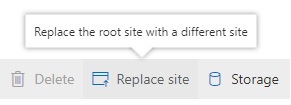
Selecting this you get the following dialog:
And we can also use PowerShell to do the swap. Powershell offers the capability to manually set the url for the archive url and some further parameter:
Invoke-SPOSiteSwap
         -SourceUrl <string>
         -TargetUrl <string>
         -ArchiveUrl <string>
         [-DisableRedirection]  
      [<CommonParameters>]
  • Use the root site as it is but with a modern experience: If you want the content on your classic root site as it is but want to have the layout of a communication site, apply the communication site experience to the root site. This feature isn't available yet but is coming soon.
  • Continue using the classic team site but with modern pages library and a modern home page: If you want to continue using the classic team site, enable the modern site pages library experience and set a modern page as the home page of the root site. This gives users a modern team site experience with the left navigation.

Things to think about

Before you begin, make sure that…:
  • If you have "Featured links" on the SharePoint start page. You'll need to add them again after you replace the root site.
  • Review your source site about policies, permissions, and external sharing settings

Limitations:
You can use the following as a new root site:
    • Communication site (SITEPAGEPUBLISHING#0)
    • Modern team site that isn't connected to an Office 365 group (STS#3) | The root site can't be connected to an Office 365 group.
    • Classic team site (STS#0).

When plan to do a site swap the root site and the new site can't be hub sites or associated with a hub. You need to unregister it as a hub site, replace the root site, and then register it as a hub site again.

Mittwoch, 8. August 2018

Summary about Modern Team Sites, Communication Sites & Hub Sites


Modern Team Sites, Communication Sites & Hub Sites

Modern Team Sites, Communication Sites & Hub Sites are available in SharePoint Online and SharePoint 2019. A modern Site is created from the SharePoint Home App:

Common Stuff

In modern Sites we have a bunch of new Webparts:

One of the initial questions is about using a modern Team Site or a Communication Site. At the end it all about the focus of the site and the question about the usecase for this site. Susan Hanley provides a brilliant overview and matrix to find out what is best for your scenario:
In addition, Mark Kashman also provides a good overview picture about modern Team Site and Communication Site:

Modern Team Site

About Modern Team Site:
  • Focus: Connect, Collaborate, Create
  • Connected to O365 Groups: Creates group email address
  • Privacy settings: Private by default and can be changed to public


In modern Sites we have a so called “New” Dropdown to easy create new objects:
It is also very easy to modify the Quick Launch Navigation based on the modern canvas:

A new feature for modern Team Sites is the Site Info Hover Panel. You can access this panel by mouseover the Site name:

The panel gives you an overview about the site and direct links to the associated resources like the Planer, the Group Calendar etc.


Communication Site

About Communication Sites:
  • Fokus: Showcase, Share Services, Story (broadcast information)
  • 3 different type of a Communication Site are available out-of-the-box:
    • Topic: Designed to present large amount of information such as news, events and other content
    • Showcase: Designed to showcase a product, team, or event using images
    • Blank: Start from scratch


Modern Sites Pros and Cons

Pro:
  • Easy to use
  • Modern canvas
  • Modern branding & responsive design
  • Modern Web Parts
  • Easy to use/configure web parts
  • Connected to a Group
  • Extend using the SharePoint Framework

Contra:
  • Only created as a site collection and no modern sub-sites available
  • No variations until now
  • No extensibility for modern search until now
  • Not all Lists, Libraries and website types have a modern design already (Blogs, Tasks, Calendars, Discussions)
Complete list and further details: http://www.sharepointtalk.net/2018/08/things-to-think-about-when-moving-from.html


Things to think about when moving from classic to modern SharePoint Site
Moving from classic SharePoint Online Sites or from SharePoint on-prem Sites to modern Sites sound easy but can get tricky. There are several pros and cons coming from classic Sites and now plan to use modern Sites. The following to table shows the pros and cons and the topics you have to think about when planning a migration:


Hub Sites

Common info about Hib Sites:
  • Linked sites
  • Consistent branding across all sites
  • Top navigation
  • Search within the hub site will also search all linked sites.
  • Aggregate news from linked sites. This can take 5–15 minutes.
  • Flexible attach & detach a site from a hub
  • Sites can only be associated with one hub site.
  • Hubs can’t be nested
  • Limited to 50 hub sites
  • Association with a hub does not change the permissions on a site
  • A site can only be associate with one hub


Webparts for Hub Sites:
  • News roll-up: News published on a hub site and on any associated sites is automatically aggregated and shown on the home page of the hub site.
  • Associated sites: Display the most active sites associated with the hub site.
  • Highlighted content: Use the Highlighted content web part to dynamically display content from sites associated with the hub.


Admin Stuff

Manage site creation in SharePoint Online Admin:


Subsite Creation in SharePoint Online Admin:

Office 365 Groups Connection Setting in SharePoint Online Admin:

To allow only specific users to create groups, use the PowerShell cmdlet GroupCreationAllowedGroupId or change setting in Azure AD

Connect to a new office 365 group:
Ability to connect existing SharePoint team sites to Office 365 Groups is coming later this year


Branding SharePoint Modern Sites

Out of the box themes, configuration option and custom site themes:
  • The following predefined themes are available by default: Blue, Orange, Red, Purple, Green, Gray, Dark Yellow, Dark Blue
  • Each theme can be customized by selecting “Customize theme”
  • Custom themes can be created and uploaded. To create a custom theme a online theme generator tool is available: https://developer.microsoft.com/en-us/fabric#/styles/themegenerator
  • Classic themes can still be used by choosing the link under the modern themes listed.
    • Because the modern SharePoint UI differs from the classic UI, however, some limitations apply when you use classic themes with modern pages.

Themes are defined in a JSON schema that stores color settings and related metadata for each theme. These capabilities are available to administrators via PowerShell cmdlets, and to developers via the SharePoint client-side object model (CSOM) or the SharePoint REST API.


PNP Starter Kit & Fantastic 40 Web Parts

What is the SharePoint Starter Kit:
  • SharePoint Starter Kit demonstrates how you can extend modern sites.
  • Currently included in the package:
    • Tenant level provisioning logic using PnP Provisioning Engine
    • 3 site collections. One assigned to be a hub site and two associate to the hub site automatically from the provisioning script
    • Contoso Site Designs for group associated team site and communication site
    • 17 client-side web parts demonstrating different capabilities
    • 7 SharePoint Framework extensions
    • Sample LOB service to be hosted in Azure
    • Sample content on the portal to demonstrate news and article capabilities
Source and further details: https://github.com/SharePoint/sp-starter-kit

What is the Fantastic 40 Web Parts:
It is a sample kit of 40 web parts for example visual web parts as carousel, images galleries, custom editors, polls, charts, map, animations, etc. These web parts are free and open source. The webparts are available: English, French, Spanish, German. IMPORTANT NOTE: These web parts are not officially supported by Microsoft.