Posts mit dem Label EMS werden angezeigt. Alle Posts anzeigen

Montag, 21. September 2020

Secure your environment by Conditional Access & App Controls

With the Azure AD Conditional Access feature, rules for access to Microsoft Cloud Services and other apps registered in Azure AD can be bound to conditions.

An example is the rule: When accessing with an unmanaged device, the user is prompted to use multi-factor authentication.

With the feature "Use Conditional Access App Control" as an option in the Session Controls area within Azure AD Conditional Access, advanced scenarios can be setup.

Options:

  • Prevent data exfiltration
  • Protect on download
  • Prevent upload of unlabeled files
  • Block potential malware
  • Monitor user sessions for compliance
  • Block access
  • Block custom activities

Example:

  • Automatically assign a sensitivity label when a file is downloaded.
  • Filter based on regular expressions: “Include Files that match a custom expression
  • Block Upload if Maleware is detected.
  • This is can be done because the Cloud App Security service then acts as a proxy for accessing the application:

Setup Conditional Access App Control

The options listed above affect all resisted apps under https://portal.cloudappsecurity.com/#/connected-apps?tab=proxy.  By default, this list is empty:

To register an app, the wizard can be used in Cloud App Security via Investigate -> Connected Apps -> Conditional Access App Control Apps. Another and much simpler way is to use a conditional access policy as an easy start:

  • Azure AD Security -> Conditional Access

  • New Policy

  • Section „Access controls“ -> „Session“

  • Use „Use Conditional Access App Control“

  • Use „Use custom policy to set an advanced policy in Cloud App Security“


Configure the policy in the menus "Users and Groups" etc. that it will be applied the next time the app to be registered is started. This then results in apps that are authenticated via Azure AD being automatically registered in Cloud App Security under „Conditional Access App Control“:

The above method works for the so called featured apps. In order to make this option work for the Office 365 Featured Apps, Office 365 must be registered under "Connected Apps" in Cloud App Security:

Once an app is registered, session policies can be created that will take effect when the app is used.

Example: If the user Oliver Hardy tries to download a document from Microsoft Teams (SharePoint) that contains the term "confidential", the download is blocked.

Further scenarios

  • Monitor / block activities based on file conditions like Classification Label, File Name, Files Size or File Extension
  • Monitor / block activities like Cut/Copy Item, Paste Item, Print Item, Send Item
  • Block downloads based on conditions
  • Apply classification label to downloads
  • Apply rules based on Maleware detection

Impact from the user's perspective

When opening the app, the user is notified that access is monitored by Cloud App Security. The fact that a proxy is involved can also be recognized by the URL. This now has the addition access-control.cas.ms:

If the user Oliver Hardy now tries to download a document he gets the following message:


Samstag, 5. Oktober 2019

Microsoft Security Stack - When to use what


When to use what – Azure Sentinel, CASB, Azure Security Center, Security & Compliance Center in Office 365, etc.

Many customers using Microsoft Cloud Services in the context of collaboration und communication often asked the “When to use what” question. Meanwhile we had several really good methods and tools to answer this question like the Periodic Table of Office 365. At the end it is not about when to use what, it is about “what do you want to do” or “what is your business case”? And this is the same with the Microsoft Security Features & Services.

Features & Services

Microsoft Azure Sentinel is a cloud-native SIEM solution with advanced AI and security analysis capabilities.

Microsoft Cloud App Security is a multimode Cloud Access Security Broker (CASB). It provides rich visibility, control over data travel, and sophisticated analytics to identify and combat cyberthreats across all your cloud services. Further infos about CASB

Azure Security Center provides unified security management and advanced threat protection across hybrid cloud workloads.

Office 365 Security & Compliance Center is designed to manage security & compliance features across Office 365. Links to existing SharePoint and Exchange compliance features bring together compliance capabilities across Office 365.

Microsoft Intune is a management solution that provides mobile device, endpoint and operating system management. It aims to provide Unified Endpoint Management for corporate devices and BYOD.

Azure Active Directory (Azure AD) is Microsoft’s cloud-based identity and access management service. It covers resources, such as Microsoft Office 365, the Azure portal, and thousands of other SaaS applications along with any cloud apps developed by your own organization.

Microsoft Information Protection helps an organization to classify and protect its documents and emails by applying labels. It helps you discover, classify, label and protect your sensitive information – wherever it lives or travels. Further infos about Information Protection

Protect your enterprise from threats in the cloud and on-premises with Azure Advanced Threat Protection. ATP is a cloud-based security solution that leverages your on-premises Active Directory signals to identify, detect, and investigate advanced threats, compromised identities, and malicious insider actions directed at your organization.

Microsoft Defender Advanced Threat Protection (ATP) is a unified platform for preventative protection, post-breach detection, automated investigation, and response. Microsoft Defender ATP is built into Windows 10.


Typic discussions with customers

Azure Sentinel vs. Azure Security Center

Azure Security Center is focusing on Azure workloads. Azure Sentinel is used to for real-time event and detecting attacks covering your hole architecture.
Quote by Microsoft: To reduce confusion and simplify the user experience, two of the early SIEM-like features in Security Center, namely investigation flow in security alerts and custom alerts will be removed in the near future. Individual alerts remain in Security center, and there are equivalents for both security alerts and custom alerts in Azure Sentinel. Going forward, Microsoft will continue to invest in both Azure Security Center and Azure Sentinel. Azure Security Center will continue to be the unified infrastructure security management system for cloud security posture management and cloud workload protection. Azure Sentinel will continue to focus on SIEM. Source: Securing the hybrid cloud with Azure Security Center and Azure Sentinel


Azure Security Center vs. Security and Compliance Center in Office 365

The Office 365 Security & Compliance Center is designed to help you manage security & compliance features across Office 365. Links to existing SharePoint and Exchange compliance features bring together compliance capabilities across Office 365. Azure Security Center analyzes data from a variety of Microsoft and also partner solutions. To take advantage of this data, machine learning for threat prevention, detection, and eventually investigation. Both services are part of the Microsoft Service Trust Platform


Azure Sentinel vs. CASB

Azure Sentinel is a SIEM solution with advanced AI and security analysis capabilities. It integrates with third-party security platforms from vendors such as Fortinet, Symantec and Check Point, as well as Microsoft's Graph Security API. By connecting with Microsoft Cloud App Security, you will gain visibility into your cloud apps, get sophisticated analytics to identify and combat cyberthreats, and control how your data travels.


Office 365 Security Features vs. Intune

Microsoft Intune and built-in security features in Office 365 for MDM both give you the ability to manage security & compliance in your environment. You can manage security & compliance using both Intune and Office 365 in the same Office 365 tenant. If you have both options available, you can choose whether you manage security & compliance in Office 365 or the more feature-rich Intune solution for MDM and MAM scenarios.


Azure AD vs. Intune

Intune manages mobile devices and apps. It integrates closely with other EMS components like Azure Active Directory for identity and access control.


Azure Advanced Threat Protection vs. Microsoft Defender ATP

Azure Advanced Threat Protection enables you to integrate Azure ATP with Windows Defender ATP. While Azure ATP monitors the traffic on your domain controllers, Windows Defender ATP monitors your endpoints, together providing a single interface from which you can protect your environment. By integrating Windows Defender ATP into Azure ATP, you can leverage the full power of both services and secure your environment. Source & Details: Integrate Azure ATP with Windows Defender ATP


Roundup

As you can see all this features work together like for example Microsoft Defender Advanced Threat Protection integration with Microsoft Cloud App Security or Azure Information Protection integration with Cloud App Security So trying to find the best tool / solution for your enterprise only discussing the detailed features isn’t the best way.

How to get started

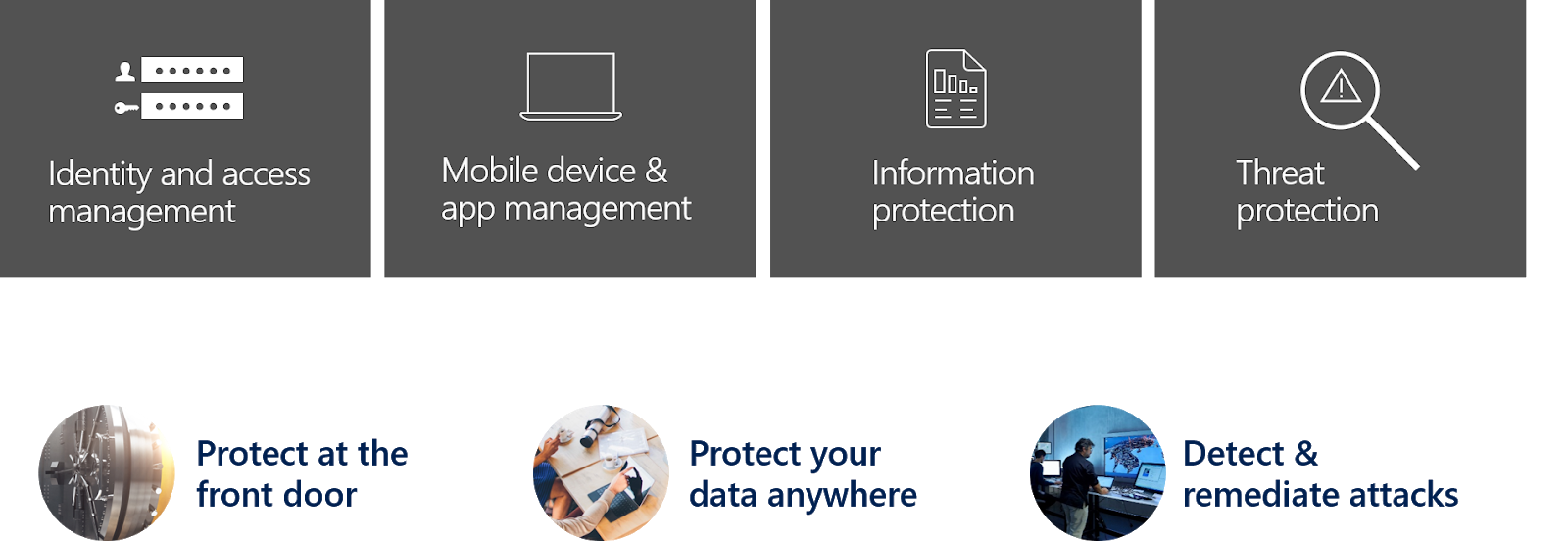
To get a solid Security & Compliance strategy based on the Microsoft Security Stack the best way is to start with your scenarios. Dealing with the Microsoft Security Stack a best practices approach is to separate the topics like this:

Next step is to map the scenarios:
  • Protect at the front door
  • Protect your data anywhere
  • Detect & remediate attacks
to those 4 categories / topics:
  • Identity and access management
  • Mobile device & app management
  • Information protection
  • Threat protection

Periodic table & mapping

Microsoft offers a good overview to tweak your scenarios in this article Top 10 Actions to Secure Your Environment. Based on this the following overview offers a blueprint to get started with your security strategy:

Architecture


Roundup

From a planning and architecture perspective the features and services must be separated in monitoring solution and solution used to natively setup regulations and policies.
For example: You can use Information Protection to protect you content and E-Mails and in addition you can integrate the Logs and Signals coming from Information Protection to Azure Sentinel. But natively you cannot use Azure Sentinel to protect you content and E-Mails.
So at the end it is all about your scenarios!

Montag, 12. August 2019

Don’t make me think about IT Security


This is what end-users say about IT-Security. If you are an Admin or Data Security Officer, you have to think about IT Security.
Microsoft provides super useful info and material about this topic. In real world scenarios we often had to find out where to start. And also, for this Microsoft offers a walkthrough:


I put all the stuff together in a small Excel workbook and extend it with some further licensing info.
All important information for your IT security strategy is summarized in this Excel. In column 1 you will find the respective scenario, column 2 gives you an overview and column 3 the details on the topic. Columns 4 and 5 contain further information and details on licensing.


DOWNLOAD Excel workbook!

Dienstag, 29. Januar 2019

Coaching your users through the External Sharing Experience

If your organization is sharing documents or collaborating directly with vendors, clients, or customers, then you can use the external sharing features and guest access in Office 365 to support this. Or, if this is not the case, you may want to limit the use of external collaboration in your organization.
Note that external sharing is turned on by default for your entire Office 365 environment. Every user can invite external people to Groups, Teams and SharePoint sites and can share content using OneDrive for Business. You may want to turn it off globally until you know exactly how you want to use the feature.
Poorly there is no mater switch to turn external sharing and inviting external user ON or OFF globally. We need to configure it per service and there are also cross sites effects between the services.

Settings overview


External sharing overview

Content Level

When sharing a SharePoint site with an authenticated external user, an invitation is sent to them via email which contains a link to the site. During the login process they are asked to log in using the username and password of their Microsoft account or their work or school account. If the login is successful, the account is added to the Azure AD associated to the Office 365 subscription. The account is added with #EXT# in the user name.
An external user did not need to have a license. To discontinue sharing with an authenticated external user, remove the permissions from the site or delete the user in the Azure AD.
If you share a file or folder with an external user, this user gets an email with a link to the file or folder. The user gets a time-sensitive code via email that he can use to verify his identity. Once he proved his identity by using the code the user is added as a external user in the Azure AD and he can access the file using his account. Sharing a file or folder with a user that did not have a Microsoft account or work or school account this user needs to use the code every time to access the shared content.
To discontinue sharing with an authenticated external user you can delete the sharing link that was sent to him.
To share with anonymous users, you can set several options:
  • Edit, view or upload to a folder
  • Set link to expire at a specified time
  • Block download

The (external) user will receive a E-Mail with the link to the file or folder.
Anonymous users are not added to the Azure AD. To discontinue sharing you need to delete the anonymous link.

Collaboration Level

Guest access on the collaboration level is included with all Office 365 Business Premium, Office 365 Enterprise, and Office 365 Education subscriptions. No additional licensing for the guest users is requirement. You can have up to 5 guests per licensed user on your tenant. For more information about licensing, see Azure Active Directory B2B collaboration licensing guidance.

Office 365 Groups

To collaborate with external users in your Office 365 Group this feature must be activated as showed in the table above. By default, guest access is turned on in Office 365. That means, that everyone in your organization can add external users to an Office 365 Group. When an external user is invited to join a group, he receives an invitation email. The external user will have access to the following Office 365 Group features:
  • Conversations: Externals did not get access to the conversation history, but they will become part of the Office 365 Group distribution list.
  • Notebook: Externals get access to OneNote
  • Calendar: No access, but they receive calendar invitations
  • SharePoint Team Site: Externals get access to the SharePoint Team Site
  • Planner: To access a plan, guests either need to use a specific plan URL or go to https://tasks.office.com/%organizationdomainname%

Microsoft Teams

Because of Microsoft Teams is using services like SharePoint Online etc. the external access configuration belongs on the settings in you tenant.
Each level controls the guest access as shown:
  • Azure Active Directory: External access in Microsoft Teams relies on Azure AD.
  • Microsoft Teams: Controls external access in Microsoft Teams.
  • Office 365 Groups: Controls external access in Office 365 Groups and Microsoft Teams.
  • SharePoint Online and OneDrive for Business: Controls external access in SharePoint Online and OneDrive for Business.

Advanced

Office 365 inter-tenant collaboration

We have several options to collaborate between two Office 365 tenants. Based on Azure Active Directory B2B we can set up collaboration for nearly all Office 365 services. Details are described in this Microsoft article: Office 365 inter-tenant collaboration

Tenant restrictions

Tenant restrictions enables you to control access to other Office 365 tenants. Tenant restrictions gives organizations the ability to specify the list of tenants that their users are permitted to access. Details, pre-requirements and limitations are described in this Microsoft article: Use Tenant Restrictions to manage access to SaaS cloud applications

Office 365 user vs. Windows Live ID

Anyone with a Microsoft work or school account or a consumer email account, such as Outlook, Gmail, or others, can participate as a guest in Office 365.

If a user has an Office 365 hosted E-Mail address, he will automatically have a work or school account created by his IT department. This account original exists in an Azure AD.
If a user does not have a work or school account, he can use a LiveID. To get one the user needs to go to the Microsoft account sign-in page: https://account.microsoft.com/. In the upper right corner select “Login” and then select “No account”. He needs to fill out the form and create a password. Details see below in “Coaching your (guest) users through the External Sharing Experience” The LiveID is original hosted by Microsoft.

Coaching your (guest) users through the External Sharing Experience

Content Level

IF you are inviting an external user to a SharePoint site or added him to a SharePoint group, he will receive an invitation E-Mail:
The link in the email will point the user to a website asking him what type of account he has:
If the user enters his email but did not have a Microsoft account, he will see the following dialog:
Click “Create One!” to register a new Microsoft account:
Set a password:
Provide your details:

Microsoft will send a code to verify the email address:
If a file or folder in SharePoint or OneDrive for Business is shared to an external user and the user did not already exists in the Azure AD, he will also need to verify his E-Mail address:
Sharing a file or folder with a user that did not have a Microsoft work or school account this user needs to use the code every time to access the shared content.

Collaboration Level

When an external user is invited to a group, he receives an E-Mail:
External member's can join conversations through their inbox and receive calendar invitations.
When an external user is invited to a group, he also receives an E-Mail with the details:

Sonntag, 25. November 2018

Office 365 Message Encryption (OME) vs. Azure Information Protection

Main difference from a security perspective is, that OME is encrypting the transport and not the attached content over its lifetime.
Details:
All feature like IRM, AIP and OEM are based on the Azure RMS Service. The overall architecture looks like this:

Comparison of OME, IRM, and new OME capabilities


OME vs AIP


  • If you want to protect documents attached to an E-Mail only on the transport layer or if you want to use the “Do not forward” feature OME is the way to do it.
  • If you want to protect the document also after the E-Mail is received and the document is downloaded etc. then you need AIP.

Bothe features are good to protect E-Mails and attachments for internal use and for sharing them with externals. In OME you can send protected E-Mails to external receptions with out configuring anything special. The recipients received an HTML message that they downloaded and opened in a browser or downloaded mobile app:
To make the functionally available with AIP you need to add the external domain to you AIP label:

Protecting an E-Mail with AIP or OME in Outlook


OME:

AIP:


Freitag, 12. Oktober 2018

Security & Compliance sucks...not anymore

Deutsche Version: LINK
Finally, the General Data Protection Regulation (GDPR) forces companies to think about which data is accessible and editable by whom. With the recent data protection scandals on major platforms such as Facebook etc. the protection of data is not only a very topical issue, but also a very topical business model.
Microsoft offers its customers functions and license models to monitor and secure access to their data and systems. In the end it is a complex story to find out which functions and which licenses are required to implement Security & Compliance requirements in your company. The whole story is further complicated by different license models and feature-sets focusing on Security & Compliance.
At the Ignite 2018 improvements around Security & Compliance were announced. Office 365 becomes Microsoft 365, Azure Information Protection becomes Microsoft Information Protection and so on. But what does this mean for customers, partners and especially the users?
Actually quite a lot. Microsoft services getting more and more aligned to the operational processes and users needs. In the future, management portals, for example, will be grouped and accessed according to their use:
  • https://Admin.microsoft.com => Admin Center
  • https://security.microsoft.com => Security Settings
  • https://compliance.microsoft.com => Compliance
Data classification and encryption is an important requirement for storing sensitive content in SaaS solutions. Azure Information Protection Labels, Site Classifications and Office 365 Labels are now standardized in the Office 365 Security & Compliance Center and does no longer exist separately from each other. This makes the use of these techniques much more efficient.
These are just two examples on how Microsoft Cloud Services successively merge what belongs together.
Microsoft Information Protection or the Microsoft Intune feature for managing devices and apps are focusing explicit scenarios. However, security & compliance projects often do not start with these specific requirements. Starting an Office 365 project the requirement is more about providing basic protection level and setup. Based on this basic configuration further requirements are then successively defined and implemented in the company.
A new provisioned Office 365 Tenant is very open. Basically, every user can share all the data he has access to with anyone. Users can invite external partners to collaborate with them in a SharePoint site or in Teams and anyone can connect to Office 365 using any device by entering his username and password.
This liberal setup of Office 365 is very good for collaboration and communication in the company and with partners and customers. But it is risky in terms of Security & Compliance.
In Microsoft Internet Explorer we could configure the security of the browser with a simple slider. If there is the need to adjust special settings, this was also possible. Unfortunately, it is not quite that easy with Office 365 or Microsoft 365. A slider like we have in the Internet Explorer is unfortunately missing here.
But the whitepaper "A quick guide to secure Office 365" offers something similar. Based on a matrix with the levels StandardMediumHigh and Very High, it gives you an overview how Office 365 can be secured. The whitepaper also describes the effects on user-friendliness and the required licenses for setting up the various scenarios.
The whitepaper outlines a clear overview of the Microsoft technologies and functions for securing Office 365. Covered technologies are:
  • Office 365 Secure Score
  • Cloud App Security
  • Intune & Office 365 MDM
  • Azure AD Premium Features
  • Office 365 Advanced Threat Protection
  • Office 365 Threat Intelligence
  • Security & Compliance Reports.
And another tip from me: If a user wants to save a file in his private DropBox folder, then he has a reason for it. Nobody does this accidentally or by mistake. If we don't know this reason and don't respect it, the whole Security & Compliance project will go wrong. Because of so many options that Shadow-IT offers to users today it is no longer possible to enforce security. The goal must is to understand which challenges and processes an employee faces in his daily work. A security and compliance setup must be based on this and acknowledges these factors.
Link to the white paper and my presentation at Ignite 2018 on this topic: LINK