Posts mit dem Label SharePoint Search werden angezeigt. Alle Posts anzeigen

Sonntag, 30. Juli 2017

Overview of shared with Externals and shared Anonymous in Office 365

The GDPR highlights the need for protection of personal data held by organizations. To be able to do this Microsoft inverted a lot in new features and functions like the Office 365 Security & Compliance Center or the GDPR Assessment.
One of the backend systems helping to fulfill those regulations is the SharePoint Online Search Service. In the SharePoint Online Search schema, we can find two managed properties focusing on sharing and access from outside of your organization.
ViewableByExternalUsers and ViewableByAnonymousUsers
Both had the same setting: Query, Retrieve, Refine and Sort. So we can use them to create some reports based on search queries.

Personal overview

Office 365 let every user search in his SharePoint Online sites, OneDrive for Business files and also in Emails for content. In this scenario Email is of topic. But using this search function at the landing page of Office 365 a user can create a personal overview of content he shared to externals or anonymous.
To do this a user needs to fill in the following query in the search box at the Office 365 landing page:
ViewableByAnonymousUsers=true


In this example, I search for documents located in SharePoint Online sites or in my personal OneDrive for Business which are shared based on an anonymous guest link.
Using the query ViewableByExternalUsers=true shows me the files shared with external users through a sharing link that requires them to log in before they can view the file.
This gives a user an overview of documents he has shared from his OneDrive for Business with externals or anonymous. Because the URL is generic you can use this link for all your users and every user get his person overview: https://www.office.com/search?auth=2&home=1&q=ViewableByAnonymousUsers%3Dtrue
Also you can use this link to create a tile in the Office 365 App Launcher as described in the article: Add custom tiles to the app launcher
The result may look like this:

Team Site overview

Microsoft integrated a new out the box reporting capability in every Team Site. The article: View usage data for your SharePoint Online site is showing all details you need to know. There is also a new tab called “Shared externally”.
The article says: List of files you have access to that have been shared with users outside your organization through a sharing link that requires them to log in before they can view the file. Files shared with anonymous users or files available to users with guest permissions are not included.
To get a list of files shared anonymous in this Team Site we can again use the query: ViewableByAnonymousUsers=true followed by a path filter like for example: path:https:\\yourTeamSiteName.sharepoint.com.

Using Search Center to get an overview

As an administrator, you can also use the search center to get an overview of anonymous shared content or about data and also SharePoint Online Sites them self, shared to externals. The queries are basically the same and you can extend them with additional keyword queries properties.
For example, search all Office 366 Groups external users can access:
ViewableByExternalUsers=true contentclass:sts_site WebTemplate:GROUP
(Because of security trimming in SharePoint Search the user who runs the query needs access to all Team Sites to gets an complete report.)
Of cause there are also options archiving this using PowerShell for Office 365 Groups or using Reports in the Office 365 Security & Compliance Center. Using the SharePoint Online search gives you the power and flexibility to integrate all managed properties as metadata in you report like for example ViewsLifeTime, LastModifiedTime, CreatedBy or ModifiedBy. In addition you can easily scope your report to only show documents using the IsDocument=true query parameter or to focus to special Site Templates like WebTemplate:GROUP to only show Office 365 Groups Team Sites etc.

Using PowerShell to get the report

Using PowerShell to get results from SharePoint Online Search also offers the option to save the report as an *.csv file. To call SharePoint Online Search API using PowerShell and save the result to an *.csv file you can follow the steps explained by Prasham Sabadra in his article Office 365/Sharepoint Online - PowerShell Script To Call Search API And Get The Result.
This example is based on his description. The report is showing all external shared content and sites in an Office 365 Tenant and is saving the result to C:\Temp\ViewableByExternalUsers.csv
# add references to SharePoint client assemblies and authenticate to Office 365 site - required for CSOM   
Add-Type -Path "C:\Program Files\Common Files\Microsoft Shared\Web Server Extensions\16\ISAPI\Microsoft.SharePoint.Client.dll"   
Add-Type -Path "C:\Program Files\Common Files\Microsoft Shared\Web Server Extensions\16\ISAPI\Microsoft.SharePoint.Client.Runtime.dll"   
Add-Type -Path "C:\Program Files\Common Files\Microsoft Shared\Web Server Extensions\16\ISAPI\Microsoft.SharePoint.Client.Search.dll"
#Specify tenant admin and URL 
$User = "Admin@yourTenant.onmicrosoft.com"   
#Configure Site URL and User 
$SiteURL = "https://yourTenant.sharepoint.com"  
#Password 
$Password ="yourPassword"   
$securePassword = ConvertTo-SecureString -String $Password -AsPlainText –Force  
$Creds = New-Object Microsoft.SharePoint.Client.SharePointOnlineCredentials($User,$securePassword)
#client context object and setting the credentials  
$Context = New-Object Microsoft.SharePoint.Client.ClientContext($SiteURL) 
$Context.Credentials = $Creds
#Calling Search API - Create the instance of KeywordQuery and set the properties 
$keywordQuery = New-Object Microsoft.SharePoint.Client.Search.Query.KeywordQuery($Context)  
#Sample Query - To get the last year result 
$queryText="ViewableByExternalUsers=true" 
$keywordQuery.QueryText = $queryText 
$keywordQuery.TrimDuplicates=$false 
$keywordQuery.SelectProperties.Add("LastModifiedTime") 
$keywordQuery.SelectProperties.Add("ViewsLifeTime") 
$keywordQuery.SelectProperties.Add("ModifiedBy") 
$keywordQuery.SelectProperties.Add("ViewsLifeTimeUniqueUsers") 
$keywordQuery.SelectProperties.Add("Created") 
$keywordQuery.SelectProperties.Add("CreatedBy") 
$keywordQuery.SortList.Add("ViewsLifeTime","Asc")
#Search API - Create the instance of SearchExecutor and get the result 
$searchExecutor = New-Object Microsoft.SharePoint.Client.Search.Query.SearchExecutor($Context) 
$results = $searchExecutor.ExecuteQuery($keywordQuery) 
$Context.ExecuteQuery() 
#Result Count 
Write-Host $results.Value[0].ResultRows.Count
#CSV file location, to store the result 
$exportlocation = "C:\Temp\ViewableByExternalUsers.csv" 
foreach($result in $results.Value[0].ResultRows) 
$outputline='"'+$result["Title"]+'"'+","+'"'+$result["Path"]+'"'+","+$result["ViewsLifeTime"]+","+$result["ViewsLifeTimeUniqueUsers"]+","+$result["CreatedBy"]+","+$result["Created"]+","+$result["ModifiedBy"]+","+$result["LastModifiedTime"] 
Add-Content $exportlocation $outputline  
}

Samstag, 15. November 2014

Delve and the Office Graph for IT-Pros & Admins

There are a couple of really good post from Richard Dizerega, Elio Struyf, Mikael Svenson  and Waldek Mastykarz. But everyone is talking about dev. stuff or end-user perspective.
In this article I will show the idea of Delve, the Graph and how it is working and what can be done from an IT-Pro / Administrator perspective.

Basics

We can enable or disable Delve and control access to the Office graph in SharePoint Online administration. To do this we had to navigate to Admin > SharePoint > Settings. Under Office graph, select one of the following options:
-          Don’t allow access to the Office graph

-          Allow access to the Office graph
Delve can also be disabled or enabled per user. To do this the user must go to Office 365 > Delve > Delve settings.
To store this setting we have a new property in User Profile Store: OfficeGraphEnabled.
The OfficeGraphEnabled property is only used when a user actively turns off Delve for themselves.
The property also results in a crawled and managed property which can be used in Search.
So the Administrator can query that property in Search to find out all people within his organization who turned off Delve.
This can be useful to get an overview about Delve usage in you organization.
We have several other properties in the User Profile service used by Delve.
·         SPS-UserType
·         SPS-HideFromAddressLists
·         SPS-RecipientTypeDetails

The SPS- properties are there to help the Office graph to determine if user in Exchange Online is a non-person entity such as a meeting room.
Users aren’t able to set these properties directly in their SharePoint Online profiles.

Working with Delve for IT-Pro´s and Admin

From IT-Pro & Administrator perspective Delve is a kind of service we have to write code to tweak it. Actually there are no out-of-the-box WebParts etc. we can use to work with Delve.
But we have a bunch of preconfigured code snippets, examples, SharePoint Apps and tools which can be very useful also for Admins and IT-Pros.


SharePoint 2013 Search Query Tool

The SharePoint 2013 Search Query Tool support with version 2.2 also GQL (Graph Query Language). For more details about GQL follow this link: http://msdn.microsoft.com/en-us/office/office365/howto/query-Office-graph-using-gql-with-search-rest-api


Office graph queries within your SharePoint search center

Elio Struyf did a great job with his code sample to use SharePoint search center to visualize Graph Queries.
All you need is a Script WebPart, a Search Box WebPart and a Search Result Webpart. The script is overriding the default Srch.U.fillKeywordQuery function, manipulating some parameters and doing a call to the original fillKeywordQuery function. The scripts and details can be found here: http://www.eliostruyf.com/office-graph-search-queries-sharepoint-search-center/
The result looks like this:
We can use this script to fire queries against the Graph. Modifying the “Me or Actor ID” field give us an option to impersonate the query. The Graph always respects your privacy so we cannot see private object from another person. Details see here:  Privacy in Delve and Office Graph
But we can see all public objects for a given Actor ID to verify our security concept works well.
In my example I fire the query as user “Oliver Hardy”:


SharePoint Apps around Delve

In the SharePoint App store we can find a bunch of useful Apps around Delve and the Graph. Most of them are from Mavention / my MVP colleague Waldek Mastykarz. To test Delve and work with the Graph the most useful is the Office Graph Query Tester
This app showes the query which is used to get a result. This query can then be used and modified in the SharePoint 2013 Search Query Tool.


SharePoint 2013 Search API Results Webpart

I have a codeplex project for an experimental SharePoint 2013 Search API Results Webpart. This WebPart is visualizing the JSON result comming from search service as a simple list. Modifying the query in the script you can use this script to show Graph results where ever you have to.
Here I use the script in a Script WebPart to visualize the following query: ACTOR(ME)
This can be useful to show Graph results as part of you intranet landing page which is maybe not SharePoint etc.

Further information and events

·         More and further information about Delve can be found at IT-Unity: http://www.itunity.com/delve
·         IT-Unity also hosts a survey about delve: First Impressions of Office Delve
·         and there is a upcoming webinar series about Delbe at IT-Unity homepage: http://www.itunity.com

Mittwoch, 10. September 2014

First version of Delve is available

The first version of Delve formerly known as “Project Olso & Office Graph” is now available.

So what exactly is Delve? Here is what Microsoft says:

Delve (Codename Oslo) & Office Graph
Delve (Codename Oslo) is the first experience to use the power of the Office Graph. Delve is a new way to search and discover content across Office 365 based on personalized insights. Delve will be available as a Windows 8 app, on mobile devices, and integrated in the Office 365 web experience. Office Graph is an underlying technology and a suite-wide intelligence fabric that will help you discover content and make new connections. The Office Graph analyzes signals and applies machine learning. Personalized insights are built up for each user, based on their behavior, their relationships to content, topics and one another. Content and signals are captured from Exchange Online, SharePoint Online, and Yammer.

The Delve feature is located in the Office Bar at the top of the O365 site. Delve is only available for O365.

Here are some additional useful links:

Delve shows content from SharePoint team sites and OneDrive for business content. In the future, we will see more content sources to push content to the Office Graph, such as email attachments, meetings, group content, video portal content, Yammer signals/shares etc. We will also see an API for Delve in the future. The API will probably be a REST-based API supporting CRUD operations.

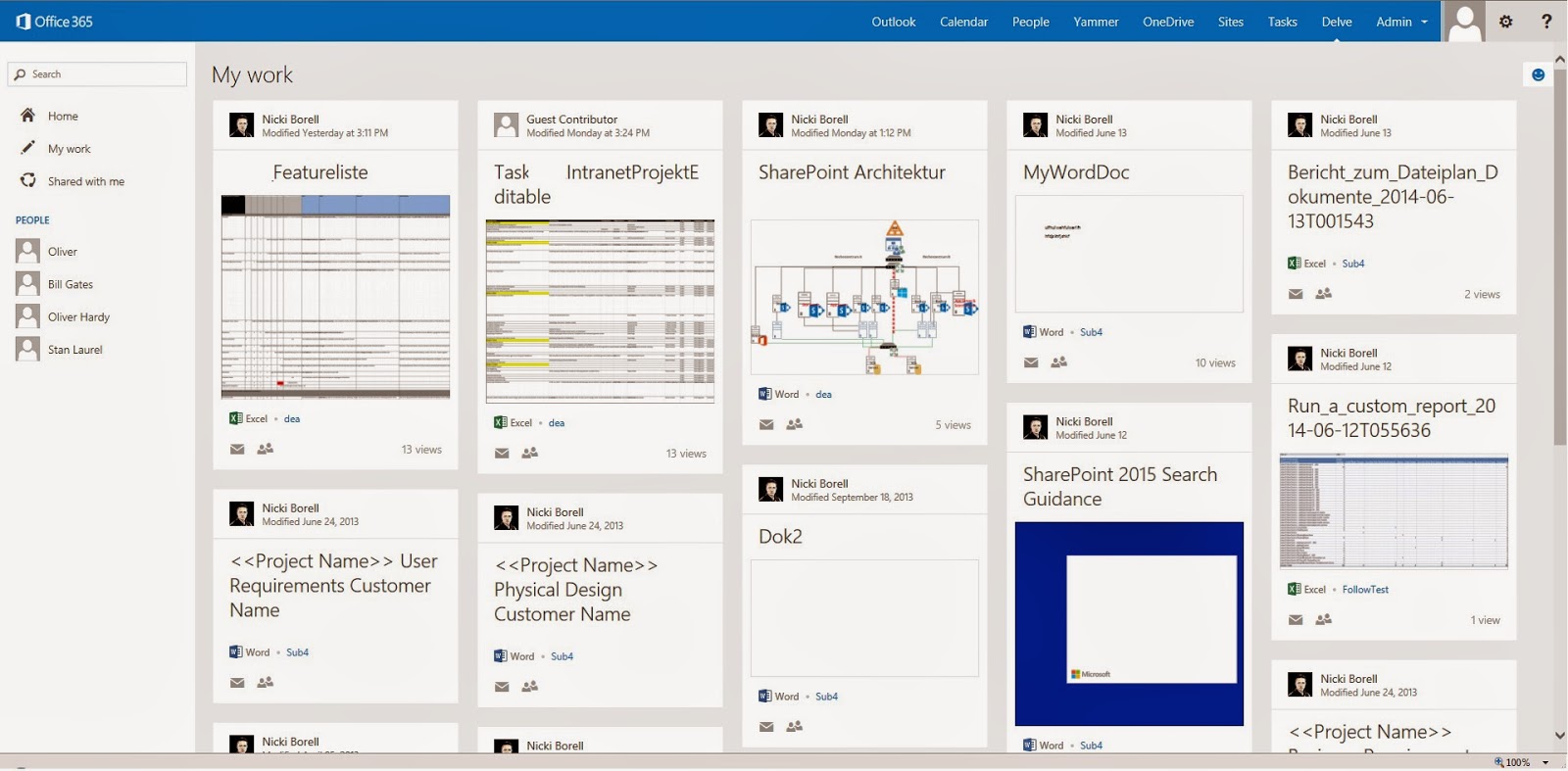
Delve looks like this:

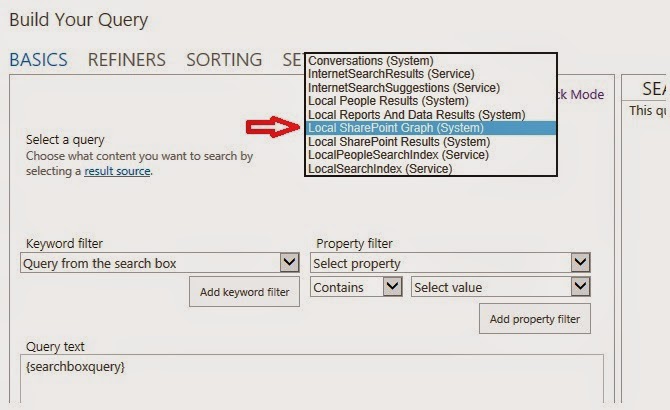
Going to Query Editor in a search result webpart we can see a new Result Source:

This result source is not shown under SharePoint online administration or in the site settings menu. It’s only visible in the Query Builder. The Office Graph gets its own index. We can assume that this new result source is mapped to the new Graph Index. The new result source is not showing any results using it in a search result web part.

Is Delve only another content aggregation?

In SharePoint / SharePoint Online, we have several sites and web parts showing content based on search and social indicators:
·         My Documents
·         Recent Documents
·         Docs I'm following
·         Suggested documents to follow
·         Documents Shared with Me
·         Documents we have in common


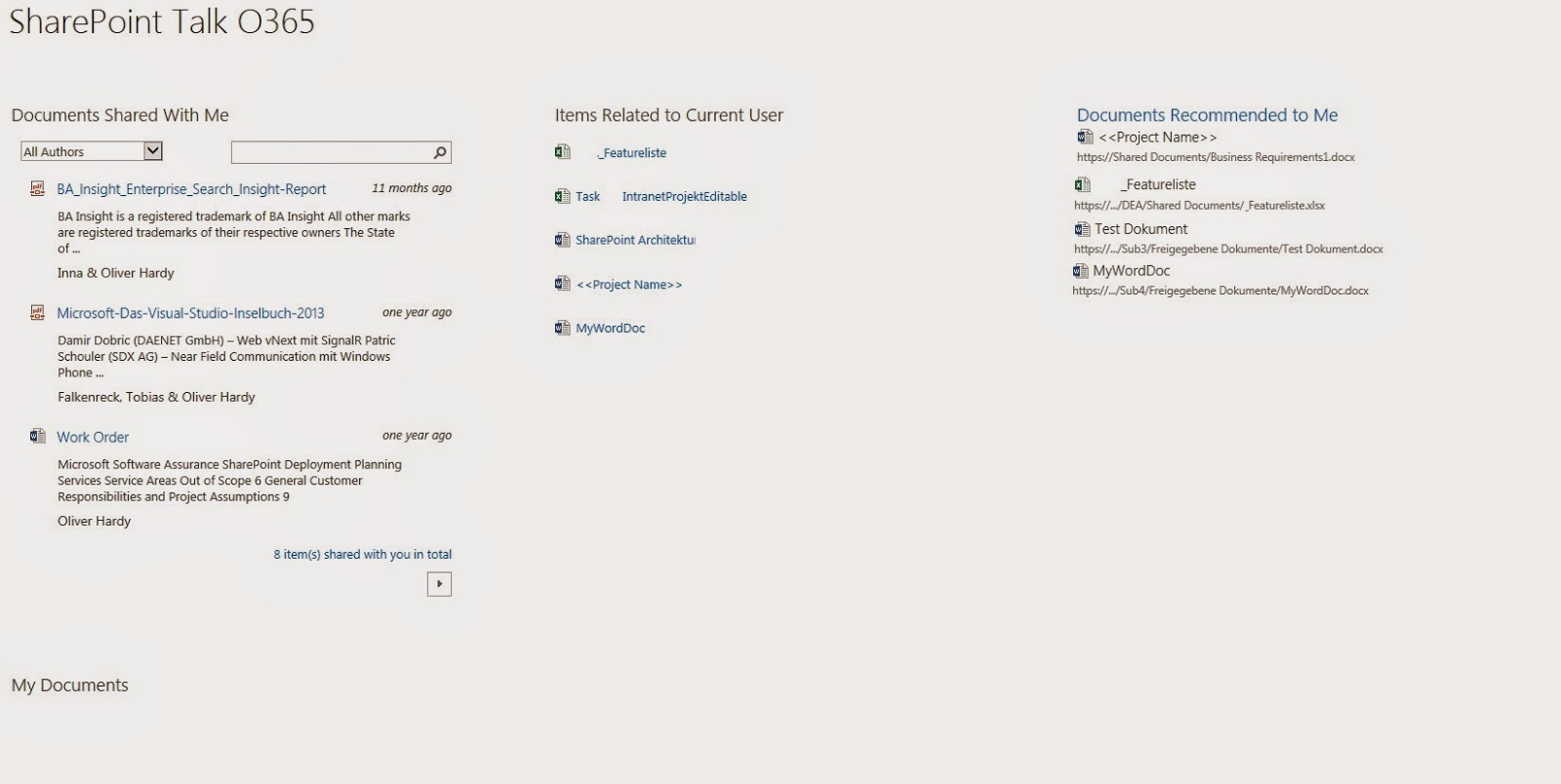
Aggregating all this in one page shows that the content is mostly related:

So is Delve only an aggregated view of all this? No it is not! Delve is based on the Office Graph, which is a kind of machine learning to map the relationships between people, content, and activity that occurs across Office 365.
To give you an idea how this works, let’s have a look at the following example.
As part of Google, we have an Analytics engine called Google Trends. http://www.google.com/trends/
I use this engine to get the following report.
  • Search term 1: Hangover
  • Search term 2: Vodka
  • Entity: Time

That means: Item1=Hangover Item2=Vodka

Item to Item recommendation shows a correlation between this to search terms / items at the end of December every year – at New Year's Eve ;-)

There is a correlation between these search terms and the date New Year’s Eve. In Delve it would be two people who are working both on the same document and because of this correlation, the system (Delve) is showing that document in the context of “trends around me.” The backend logig, algorithems and ranking models of Delve respect those correlations based on so called “signals” A signal for example is generated whene a user clicks on a document etc.  SharePoint Analytics works in a similar way. In SharePoint Analytics we talk about “events” which is the same like a “signal” in Delve / Office Graph. Both techniques are collecting, aggregation and analyzing what user are doing and is generating correlations  between content and content and users. Both solution Delve / Office Graph and SharePoint Analytics doing similar analytics but Delve is going a step forward and will soon also integrate Yammer and other components from O365.
To complete this, let’s have a look at how the SharePoint features like Items “Related to Current User” or “Suggested documents to follow” works.
“Items related to current user” is based on a result source. This result source can be used in a content search web part:


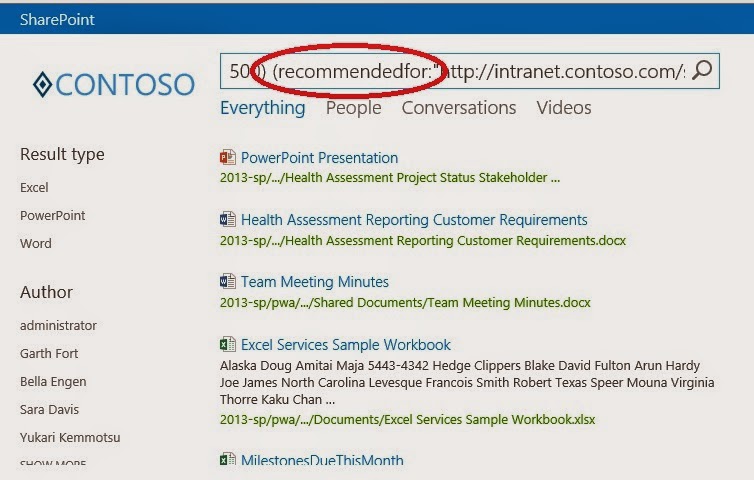
“Suggested documents to follow” is based on the managed property “recomendetfor”

Roundup

So the following features are based on SharePoint Search and SharePoint Analytics. They are part of SharePoint on-prem and can be used without Office Graph and Delve.
  • My Documents
  • Recent Documents
  • Docs I'm following
  • Documents Shared with Me
  • Documents we have in common
  • Suggested documents to follow (with social impact)
  • Items related to current user (based on a system result source)
Delve is based on search driven solution and the Office Graph, but this is not SharePoint Search or SharePoint Analytics. Delve has its own index and its own backend system as part of Office 365. Delve is not available as part of SharePoint search-driven solutions or WebParts. Also the Office Graph can not used as a result source in SharePoint Search Querys or Search WebParts. It’s a separate and independent solution.
  • Delve

When you add Delve on top of the traditional search results, this all can be a little bit confusing for end users and decision makers; a company needs a strategy for all of this. I think that Delve is the future of all these ideas and techniques. Delve will get an addition push with the upcoming Phone and Windows Apps, which allows us to get access to all this using mobile devices and without using the web interface of Office 365.
Again, you need more description here. How is this related to the bullet list above?
Belonging to comment NB5: Delve is new and not based on SharePoint Search or SharePoint Analytics feature. Delve had its own index and its own backend system the Office Graph. All this is not available in std. Search Driven Solutions build with  regular SharePoint Features like in the “Search Based” bullet list.

Montag, 14. Juli 2014

Chapter 2 - SharePoint 2013 Analytics Feature

Using the SharePoint 2013 analytics feature

Found chapter two of my tutorial about using the SharePoint 2013 analytics feature on itunity:

Using the SharePoint 2013 analytics feature

Visit us under www.itunity.com                          Follow us on Twitter @itunity01 


Sonntag, 27. April 2014

Chapter 1 - SharePoint 2013 Analytics Feature


First chapter of my tutorial about SharePoint 2013 Analytics Feature is only on itUnity:
Visit us under www.itunity.com                          Follow us on Twitter @itunity01 

Sonntag, 9. März 2014

Future of DocPush feature in SharePoint 2013

One of the most missing features in SharePoint Search is the option to push content direct to the index. In FAST ESP we have that functionality. Within FAST for SharePoint 2010 there was a tool called docpush.exe. Using this tool you can push content to the index. But this tool was not designed for productive use. There were several problems around this. For example if you push a document direct to the index using this tool and the crawler catches it also you have duplicates. During SPC14 the information came up that a push functionality for SharePoint 2013 search was already on the roadmap for SP1. Because of some unsolved problems it did not come with SP1. But this means it’s no longer a question if this function is coming – it’s only the question when it comes.

The function is no longer realized in a separate tool like the docpush.exe in FAST for SharePoint 2010. The function would be integrated as part of the SharePoint 2013 Search REST API. So there is a good changes that it also comes for SharePoint online. Locking forward what that all could mean for missing option to create own content sources for SharePoint Online. Stay patient. News are coming up soon.

Freitag, 28. Februar 2014

Problems fixed by CU´s in SharePoint 2013 Search since release

March 2013 update
Server: KB 2767999
Foundation: KB 2768000
    • When you perform a search on a SharePoint Server 2013-based server, you experience performance problems on the server.
    • The output cache feature does not work on a page on a SharePoint Server 2013 site. This issue occurs when the page contains a Content By Search (CBS) web part.
    • Assume that you use the Cross-Site Publishing feature to create a site on a SharePoint Server 2013-based server. When you perform a search on the site, the search results is greater than the expected number.
    • Assume that you access a SharePoint site that is not in your trusted sites list. When you try to search an item on the site, you receive the following error message:
      • “The display template had an error. You can correct it by fixing the template or by changing the display template used in either the Web Part properties or Result Types.”
    • When you try to perform a search crawl on a list that contains many columns in SharePoint Server 2013, you receive the following error message:
      • “The filename or extension is too long”
    • Assume that you filter data in an Access form on a non-English version of a SharePoint Server 2013 server. In this situation, Full-Text Search in SQL Server does not work correctly. More specifically, the filtering operations are slow or return incomplete results.
    • When you perform a search in a SharePoint Server 2013 search center in backward compatibility mode, the out of box (OOB) site refiner returns incorrect results.
April 2013 update
Server: KB 2726992
Foundation: KB 2751999
  • Assume that you install multiple Search Service applications in SharePoint Server 2013. When you use a Search Service application to crawl a site, managed properties are not displayed in the Search Service application. Instead, the managed properties are unexpectedly displayed in another Search Service application. 
June 2013 update
Server: KB 2817414
Foundation: KB 2817346
  • When you pass query parameters to query rules from Search Web Part on a SharePoint Server 2013 site, the search results are not updated. 

August 2013 update

Server: KB 2817616
Foundation: KB 2817517
  • When you remove a SharePoint Server 2013 server from a SharePoint Server 2013 farm, the search admin component on another SharePoint Server 2013 server crashes continuously.

October 2013 update

Server: KB 2825647
Foundation: KB 2825674
  • This update improves the stability of search components in large server farms.
  • The language selection drop-down list on the search page does not extended fully.
December 2013 update
Server: KB 2850024
Foundation: KB 2849961
  • When you add a friendly URL or a URL to a non-published item under Search Center Navigation on a SharePoint Server 2013 site, you receive the following error message:
    • Sorry, something went wrong
    • An unexpected error has occurred. 
Service Pack 1
Server: KB 2817429
Foundation: KB 2817439
  • Search schema compression is now enabled by default to allow larger search schemas.
  • Highlighting for FQL queries is now enabled for FQL as well as KQL.

Donnerstag, 27. Februar 2014

Query SharePoint Search Analytics using PowerShell

Analytics have been completely revised in SharePoint 2013. Some of the core tech in the previous FAST release has been fused together with SharePoint enterprise search to create a new and powerful analytics engine.
The Analytics Engine is based on two main parts. We have Search Analytics and we have Usage Analytics features. Both parts have own reports which can be found under Site setting and as part of the Search Service Application in Central Admin.
Usage Analytics out-of-the-box report:
Search Analytics out-of-the-box report:

By using PowerShell we can query both Analytics parts and get custom reports.

Usage Analytics:

First of all we have to set the Search Service Application:
 $searchApp = Get-SPEnterpriseSearchServiceApplication

Next step is setting up a site scope for the report:

Now we can execute the request:
$result = $searchApp.GetRollupAnalyticsItemData(1,[System.Guid]::Empty,$Site.ID,[System.Guid]::Empty)

If the report should not have a site focus we had to replace the$Site.ID” part with “[System.Guid]::Empty”.

To focus the report data to a specific day or month we can use the GetHitCountForDay and the GetHitCountForMonth method.
First we had set up the data to which we want to focus:
$FilterDate = Get-Date "2014-01-20"

Then we can use the $FilterDate variable together with both methods:
$result.GetHitCountForDay($FilterDate)
$result.GetHitCountForMonth($FilterDate)

Search Reports:

Search Analytics cmdlets follows a different syntax. To get data from that engine we also had to setup the 

Search Service Application:
$searchApp = Get-SPEnterpriseSearchServiceApplication

Also in this case we can focus to a specific site using a variable:

The difference now is that we had to set up a date time value for the report. Leaving it blank is no option here:
$searchApp.GetSearchReport(1,[System.Guid]::Empty,[System.Guid]::Empty,[System.DateTime]::Now,$false,100)
That command gets the report data for the actual month: [System.DateTime]::Now

The next parameter which is set to falseis the switch for getting data for the month = false or the day = true.
If we want the data for another month than the we have to set up a date variable and use it instead of [System.DateTime]::Now :
$FilterDate = Get-Date "2014-01-20"
$searchApp.GetSearchReport(1,[System.Guid]::Empty,$site.ID,$FilterDate,$false,100)

Getting farm wide data we also had to replace the $site.ID variable with[System.Guid]::Empty”:
$searchApp.GetSearchReport(1,[System.Guid]::Empty,[System.Guid]::Empty,$FilterDate,$false,100)
The first parameter with the value “1” is setting the Event Type. Event Type 1 = views. The next parameter is the TenantID, followed by SiteID, date value, month / day switch and the max result value (100 means show me the top 100 search terms).

Samstag, 22. Februar 2014

Create and use own usage event type in SharePoint 2013


The original technet article says the following about usage event types in SharePoint 2013

“Usage events enable you to track how users interact with items on your site. Items can be documents, sites, or catalog items. When a user interacts with an item on your site, SharePoint Server 2013 generates a usage event for this action. For example, if you want to monitor how often a catalog item is viewed from a mobile phone, you can track this activity. This article describes how to create custom usage event types, and how to add code to record custom usage events so that they can be processed by the analytics processing component. You can use the data that is generated by usage events to show recommendations or popular items on your site. This article also explains how to influence how recommendations are shown by changing the level of importance for a specific usage event type.”

So far, so good. Now let’s see how this can be done because of some code snippets in the original article won’t work very well.
In the following example we will create a custom event called “UseFulPage” and add a button to SharePoint to fire that event.

Step 1: create a custom usage event type


#Connect to SSA
$SSP = Get-SPEnterpriseSearchServiceApplicationProxy
#create Event:
#modify the $EventName varibale to your value
$EventGuid = [Guid]::NewGuid()
$EventName = "UseFulPage"
$tenantConfig = $SSP.GetAnalyticsTenantConfiguration([Guid]::Empty)
$newEventType = $tenantConfig.RegisterEventType($EventGuid, $EventName, "")
$tenantConfig.Update($SSP)
#manipulate the weight of you event by setting RecommendationWeight & RelevanceWeight
$customEvent = $tenantConfig.EventTypeDefinitions | where-object { $_.EventName -eq $EventName }
$customEvent.RecommendationWeight = 10
$customEvent.RelevanceWeight = 10
$tenantConfig.Update($SSP)
#check if the event is created
$tenantConfig.EventTypeDefinitions | select eventTypeId,EventName | ft
The result should be something like that:
The new custom event had several properties and also 2 managed properties (UsageEvent1LifeTime & UsageEvent1Recent) which can directly be used in Search or Search Driven WebParts after the next analytics processing run.
Step 2:  add code to record the custom usage event
In the following script we need the GUID of the event. To get the GUID use this script:

$SSP = Get-SPEnterpriseSearchServiceApplicationProxy
$tenantConfig = $SSP.GetAnalyticsTenantConfiguration([Guid]::Empty)
$tenantConfig.EventTypeDefinitions | select AppEventTypeId,eventTypeId,EventName | ft

To add the event to a SharePoint site I use a JavaScript snippet (thx Markus Alt).
  1. Replace %EventGUID% with the GUID of your custom event.
  2. Replace %URL% with the URL of the site where you place the event. For example: http://intranet.contoso.com
  3. Use a ScriptEditor WebPart to host the script in your SharePoint site.
<script language="javascript">
function ToEventStore(url)
{
    alert("Useful Page Event recorded");
    ExecuteOrDelayUntilScriptLoaded(function()
    {
        var spClientContext = SP.ClientContext.get_current();
        var eventGuid = new SP.Guid("%EventGUID%");
        SP.Analytics.AnalyticsUsageEntry.logAnalyticsAppEvent(spClientContext, eventGuid, url);
        spClientContext.executeQueryAsync(null, Function.createDelegate(this, function(sender, e){ alert("Failed to log event for item: " + document.URL + " due to: " + e.get_message()) }));
    }, "SP.js");
}
</script>

<button onclick="ToEventStore('http://%URL%')">Useful Page</button>

Step 3: work with the event
Clicking the button brings up a message box which tells you that your click is recorded. That means that the event is send to analytics engine and is processed during the next run. So you have to wait until the next day to see the result. By the way: Analytics data is process only once a day. You can configure the schedule using the Set-AnalysisConfiguration cmdlet. Other important point is that only data from last day is processes, not from the actual day. Bella Engen descried in that post how to manually kick the Analytics so there is no waiting until next day to see the data: http://blogs.technet.com/b/tothesharepoint/archive/2014/01/21/modify-the-content-search-web-part-display-template-and-use-windows-powershell-to-start-usage-analytics-in-sharepoint-server-2013.aspx


Kicking the event of cause has an impact to the ranking of that site. Another option to bring the result out is to use the managed property “UsageEvent1Recent” in a Search WebPart as a sort option. Doin this you can build an overview based on search showing the most “Useful Pages” in you SharePoint: