Posts mit dem Label Exchange Online werden angezeigt. Alle Posts anzeigen

Dienstag, 2. Januar 2018

Some insides about the new App Launcher in Office 365

Microsoft released a new Office 365 App Launcher version (version 3). Beside a massive experience change Microsoft also changes some stuff in the backend.

All info about the new experience can be found in this Microsoft post: New Office 365 app launcher and Office.com help you be more productive on the web

The “old” App Launcher needs an Exchange Online subscription for each user to let a user personalize his App Launcher. This was because of the App launcher settings are stored in the user mailbox. The settings are located in the PR_ROAMING_DICTIONARY property of the IPM.Configuration.Suite.Storage at the root folder of the mailbox. All this is based on JSON. The settings are located in Suite/AppsCustomizationDataTEST value and the property is called PinnedApps.

Scott Bueffe posted a detail description about this here: How to pin custom app tiles on behalf of your users in Office 365

With the new version Microsoft changed the way this information is stored. It is no longer located in a user’s Exchange Mailbox. Actually, we do not have any documentation about where the settings are stored now.


In fact, a user did not longer need an Exchange Online mailbox to customize the default Apps in his App Launcher.

Sonntag, 4. Januar 2015

The anatomy of Office 365 Groups

Microsoft released a new feature called „Groups“. This article is about the anatomy of this feature, the architecture and the structures in the backend.
For common information and the ideas behind Groups check out this link: http://blogs.office.com/2014/09/25/delivering-first-chapter-groups-office-365/

Create a Group

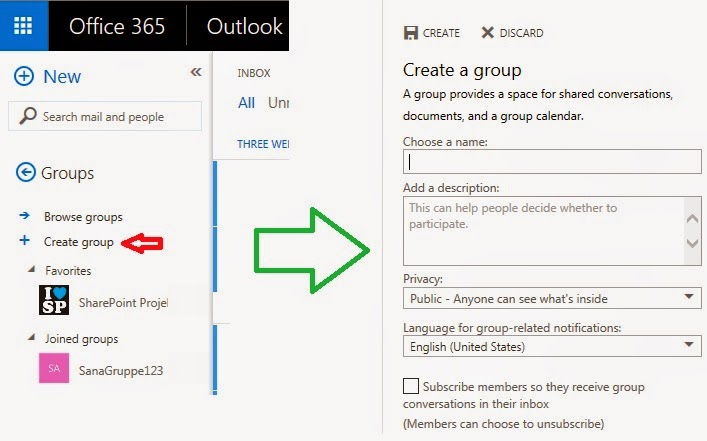
Groups are actually only available in O365 using Outlook online. You can create a new Group by navigating to Outlook online “Group” tab and press “Create Group”:

This starts a dialog for to collect the needed information’s like Name, Privacy settings etc.
Default setting for Groups in O365 allows everyone to start a new Group. To change this we need PowerShell:
Connect to your O365 Tenant -> Exchange Online: http://technet.microsoft.com/en-us/library/jj984289(v=exchg.150).aspx
Then we can use this commands:
-          to disable Groups: Set-OwaMailboxPolicy -Identity %YourDomain.com%\OwaMailboxPolicy-Default -GroupCreationEnabled $false
-          to enable Groups: Set-OwaMailboxPolicy –Identity  %YourDomain.com%\OwaMailboxPolicy-Default -GroupCreationEnabled $true

Groups architecture

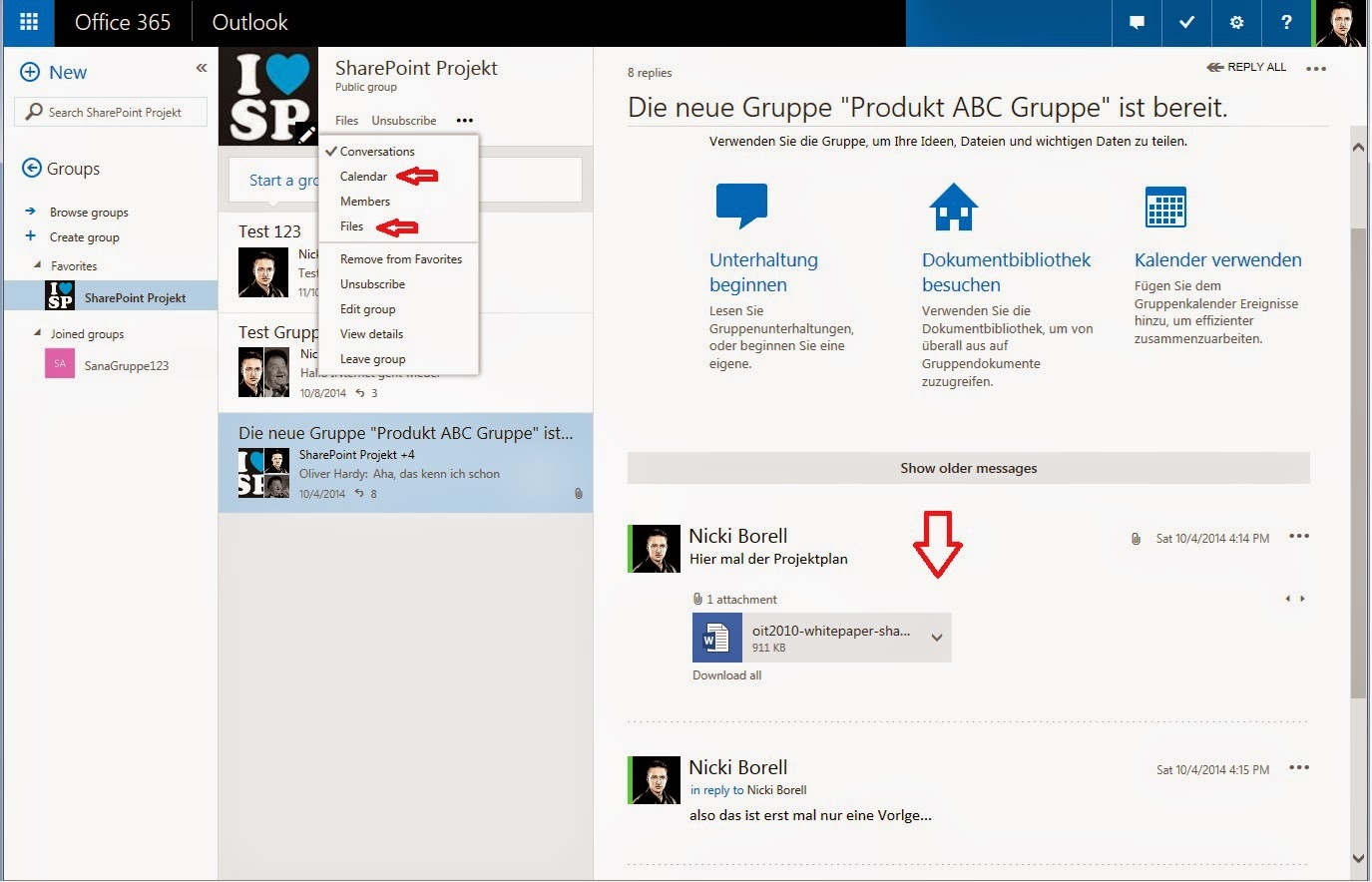
After a new Group is created you see a new tab in Outlook online for this Group. For every Group we have an overview page like this:

We can see all the conversations for this Group. Based on the “subscribe setting” during the create dialog every post in a conversation will result in an Email to all members of this Group. Insofar we are still in Exchange online.
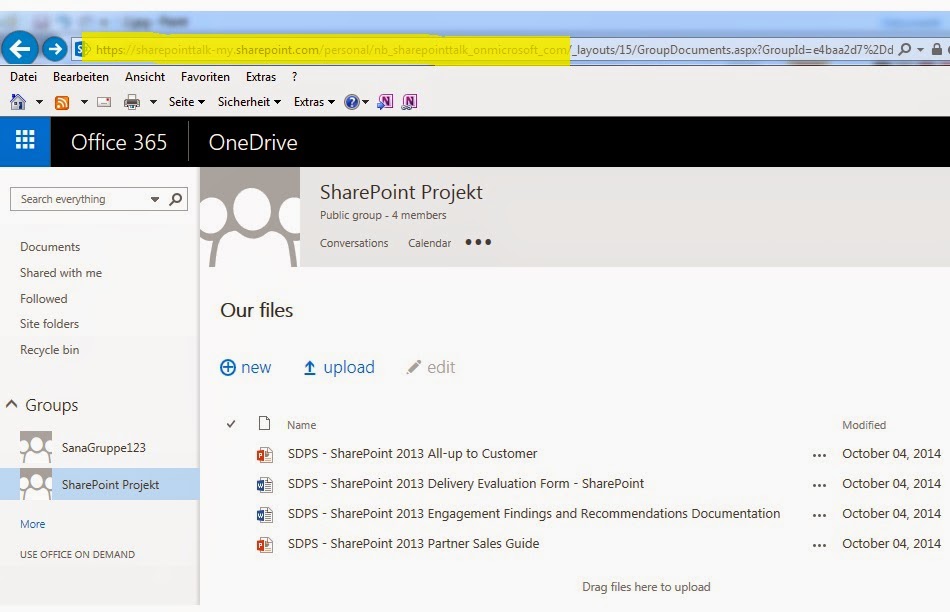
We can also see that per Group we have elements like Calendar and Files. Calendar is also based in Exchange online but Files are based in SharePoint online. Navigating to the Files of a Group redirects to the MySite of the user:

But the MySite host is not where the documents a stored. For every Group a hidden Site Collection is created in SharePoint online. We cannot see this Site Collection in SharePoint online administration, but you see the URL for example in the hover-panel of a document:

So in my example the URL of the hidden Site Collection associated to my Group is: https://sharepointtalk.sharepoint.com/sites/produktabcgruppe/
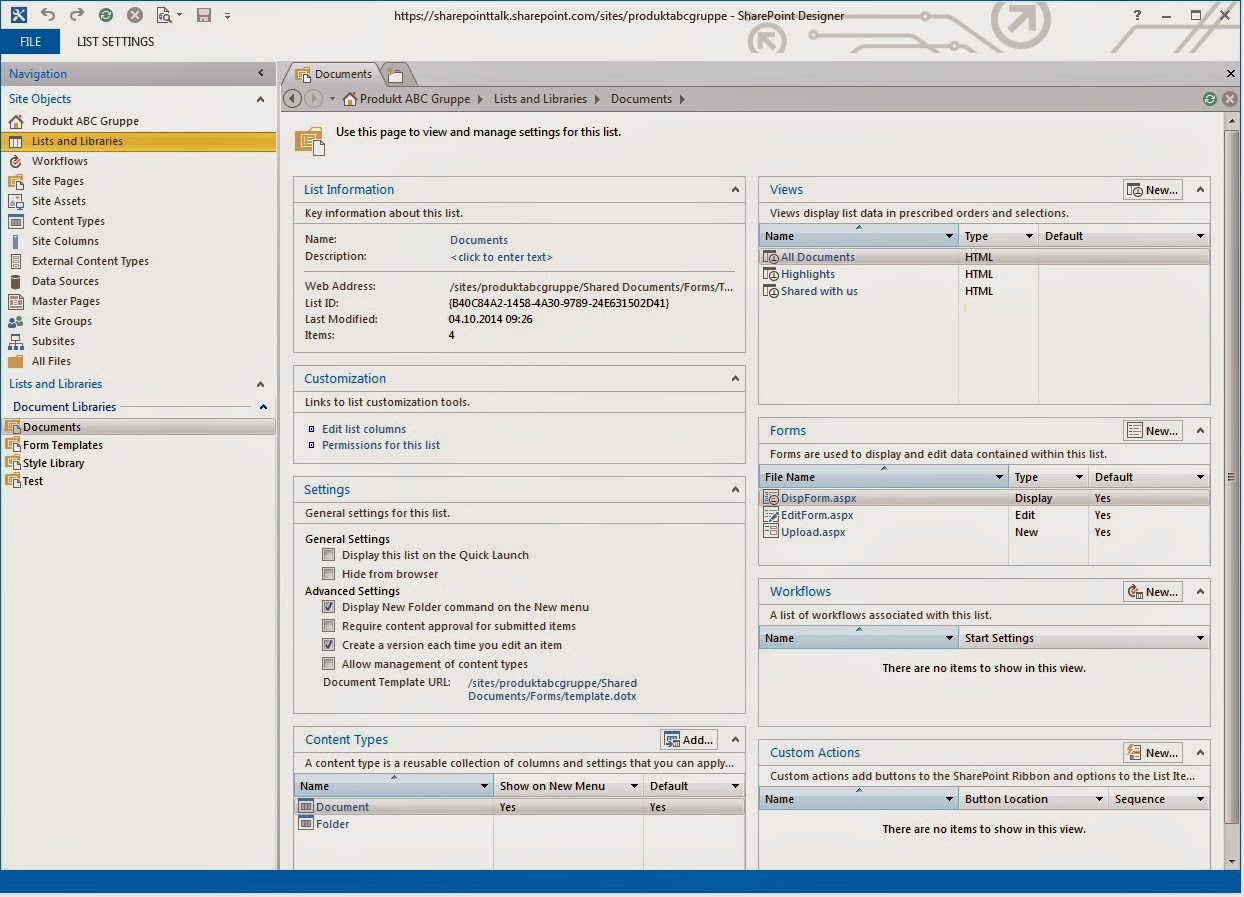
We cannot access this Site Collection. Navigation to this URL automatically redirects us to the Group Files overview page located in users MySite. This is also true for every other Sub-URL. So if we try to go to _layouts/15/seetings.aspx or to the _layouts/15/listedit.aspx to change Document Library Setting etc. we are redirected to the Group Files overview page located in users MySite. The only way to manipulate settings is using SharePoint Designer or SharePoint Client Browser. Opening the Site in SharePoint Designer looks like this:

As we see we can manipulated some settings using SharePoint Designer. BUT this is not supported and can only be useful as part of testing and troubleshooting scenarios!
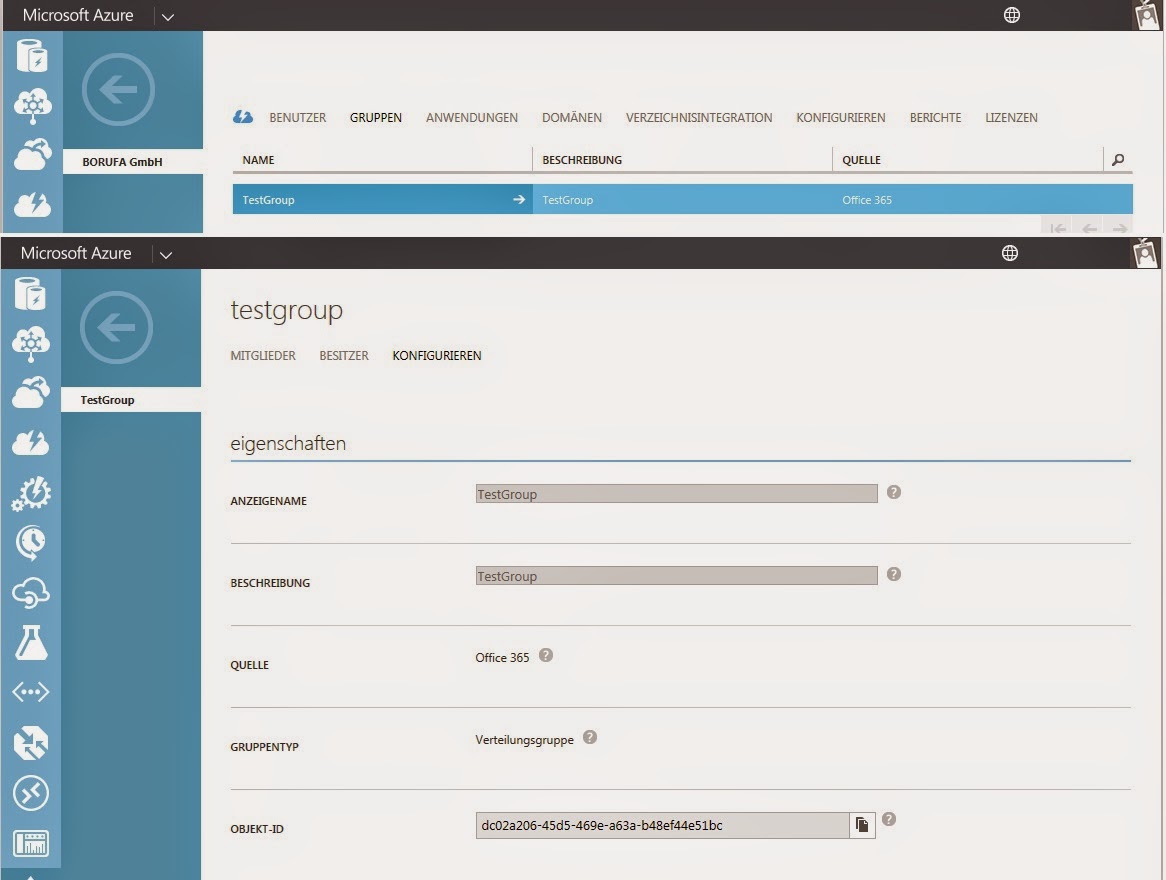
Last component is Azure AD. As we see so far Groups are using Exchange online and SharePoint online. So question is what kind of objects are Groups – and the answer is that Groups are Azure AD objects.

As you can see we have a Groups tab in Azure AD and there we can find a list of all Groups. Navigating to a Group we have several settings and information’s, amongst other things we can see the Objekt-ID which is the unique identifier for the Group.
So Groups are not a SharePoint online thing and also not an Exchange- or Outlook online thing. Groups are located in Windows Azure AD and Groups are a Office 365 feature. Because of this: Groups can easily be used in all features belonging to Office 365 and the underlying Windows Azure AD. The article I mentioned at the start of this post talks about “…In upcoming phases, we will add Yammer and Lync to the Groups experience to help you do even more”. Now we understand that this can easily be done based on the underlying Azure AD.

Roundup


Donnerstag, 1. November 2012

Generate a SharePoint list with all user information in Office 365 environment

Involved component:
·         On-premise Active Directory

·         PowerShell

·         Exchange Online

·         SharePoint Online

The given request during a project was to generate an overview list containing all user information in the environment.
The collaboration portal is running on Office 365.  All given user information such as, department, manager, location etc. are based on an import via PowerShell into the Office 365 System.
Because of the synchronization between Exchange Online, and the associated SharePoint Online System the SharePoint User Profile Service also gets that information.  In addition users are able to fill in personalized information like phone number, mobile number, office room number etc. They can do this via SharePoint MySite or they can use Outlook to complete their profiles.
So as a result, we get mostly completed and actual user profiles.
Using that URL call, you get a list of all users in your SharePoint System:
_layouts/people.aspx?MembershipGroupId=0
Based on this we now can create and refine the information and build an employees information Site in SharePoint Online:
In the following basic SharePoint function we can modify the view or bring in some new columns:
First of all I recommend to create a new view and let the system default views as they are.
I created a view called DEMO. You can see that this view will be placed under a different URL:
_catalogs/users/detail.aspx
This is a character of this special system view…
Now I do some additional configuration.
At first I only want to see real users using that filter:
It works, because objects like “NT AUTHORITY\authenticated users” do not have a forename.
In the next step I add a calculated column which I will use for group and filter functionality:
As a result my list will look like this:
Here are some examples what you can do now based on that:
Using the calculated column “_name” you can realize a filter by initial:
Or another example is a filter based on subsidiary map
As you can see all that also works on the new SharePoint 2013 version.
During the project we got the additional request to change the default dummy picture for users without a personal picture. In an on-premise installation this is no problem. You locate and change the picture. Default it is at: “http://%YourSite%/_layouts/images/person.gif”. In Office 365 / SharePoint Online this location is not accessible.
See our solution under: Changing picture inSharePoint Site with JavaScript