Posts mit dem Label Analytics werden angezeigt. Alle Posts anzeigen

Samstag, 5. September 2015

SharePoint 2016 BETA Search – a first look under the hood

PowerShell for SharePoint Search

Installing and configuration using PowerShell works similar to SharePoint 2013. You can use the same cmdlets and scripts as in SharePoint 2013.
Even if you not created a Cloud SSA as part of “Cloud Hybrid Search Preview for SharePoint Server 2013 and 2016” cloud and hybrid topics can be found everywhere.
For example I checked some new parameter within Get-SPEnterpriseSearchServiceApplication:
$sa = Get-SPEnterpriseSearchServiceApplication
$sa.CloudIndex
$sa = Get-SPEnterpriseSearchServiceApplication
$sa.QueryGraph
There is also another interesting information when we have a detailed look at the search topology. As you can see for every component we have a status information “ExperimentalComponent”. This can give us an information whether “Cloud Hybrid Search Preview for SharePoint Server 2013 and 2016” is configured or not.

SharePoint 2016 BETA Ceres – a first look

The Ceres shell is:

  • -          a set of PowerShell cmdlets.
  • -          It allow to control the internal workings of SharePoint Server search.
  • -          It is taken over from the FAST search engine
  • -          We can use it to tweak the search engine inner working
  • -          modifying the settings can completely crash SharePoint Search
  • -          it is part of SharePoint since SharePoint 2013
Manipulations are not for production use, nor supported by Microsoft – but, it can get us a better understanding of what is going on under the hood. If you are interested in further information about the Ceres have a look here: SharePoint 2013 Search internals: The Ceres shell.

Bevor we can use the cmdlets we need to set up PowerShell and connect to the Ceres:
  • cd "C:\Program Files\Microsoft Office Servers\16.0\Search\Scripts\"
  • .\ceresshell.ps1
  • Connect-System –Uri (Get-SPEnterpriseSearchServiceApplication).SystemManagerLocations[0] -ServiceIdentity (Get-SPEnterpriseSearchService).ProcessIdentity
  • Connect-Engine
  • Connect-AnalysisEngine -NodeName AdminComponent1

To get an overview of all available cmdlets use this:
Get-Command -Module analysisenginepssnapin
Comparing this overview to SharePoint 2013 we see new commands:
  • -           Get-AnalysisEngineIsPaused
  • -           Get-AnalysisEngineWorker
  • -           Register-Analysis
  • -           Unregister-Analysis

Actually no further information or documentation is available for this new cmdlets.
Using the get-analysis cmdlet we get an overview for all Analytics component SearchAnalytics, UsageAnalytics and SearchReports. If you are interested in further information about the Analytics components in SharePoint 2013 have a look here: PowerShell for SharePoint 2013 Analytics Feature
In SharePoint 2016 BETA we have a new Analytics component called “LinksStoreInput”
This new component also results in a new subfolder within the Office Server Analytics directory:
Actually no further information or documentation is available about this new component. Based on the name we only can suppose what it is doing.

Get-Flow

Get-flow is about the definition of “what” is happening in the Search internals. Manipulations are not for production use, nor supported by Microsoft. The Content Enrichment Web Service is the primary documented and supported mechanism for implementing "custom" processing logic in SharePoint Search – but, it can get us a better understanding of what is going on under the hood and what is new in SharePoint 2016 Search.
Using the get-flow cmdlet results in an overview showing all flows.
In SharePoint 2016 BETA the following FLOWS are new:
-           Microsoft.ContentPushFlow
-           Microsoft.ContentPushHybridFlow
-           Microsoft.ConversationalLatencyFlow
-           Microsoft.PropertyRetrievalSearchFlow
-           Microsoft.SearchAnalyticsBuzzFeederFlow
-           Microsoft.SearchAnalyticsBuzzInputFlow
-           Microsoft.SearchAnalyticsBuzzImportFlow
-           Microsoft.SearchAnalyticsBuzzOutputFlow
-           Microsoft.SearchAnalyticsExternalContentMapFlow
-           Microsoft.SearchAnalyticsExternalContentPushFlow
-           Microsoft.SearchAnalyticsFollowsImportFlow
-           Microsoft.SearchAnalyticsFollowsInputFlow
-           Microsoft.SearchAnalyticsGraphIndexFeederFlow
-           Microsoft.SearchAnalyticsInFeedInputFlow
-           Microsoft.SearchAnalyticsTagsImportFlow
-           Microsoft.SearchAnalyticsTagsInputFlow
-           Microsoft.SignalStoreInputFlow
-           Microsoft.UsageAnalyticsImportFlow
-           Microsoft.DocumentPreviewMetadataFeederFlow
-           Microsoft.PeopleSuggestionDictionaryDeploymentFlow
-           Microsoft.QueryCompletionPeopleOutputFlow
-           Microsoft.QueryCompletionPersonalizedQueryLogsOutputFlow
-           Microsoft.QueryCompletionPreFetchOutputFlow
-           Microsoft.QueryCompletionQueryLogsInputFlow
-           Microsoft.QueryCompletionQueryLogsOutputFlow
-           Microsoft.CrawlerPropertyReportingSubFlow
-           Microsoft.CrawlerSecurityInsertHybridSubFlow
-           Microsoft.ExplorerFlow
-           Microsoft.GraphSearchProviderFlow
-           Microsoft.QuerySuggestionsQueryLogsFlow
-           Microsoft.DeleteTenantFromIndexSystemFlow
-           Microsoft.IndexingSubFlow
-           Microsoft.DataLossPreventionSubFlow

This can give us an overview of what has changed and what is new in SharePoint 2016 Search. So the main topics based on this get-flow list are:
  • -          Content Push
  • -          External Content Push
  • -          Graph Index Feeder
  • -          Graph Search Provider
  • -          Signal Store Input Flow
  • -          Crawler Security Insert Hybrid Flow
  • -          Data Loss Prevention

If you interested in a deeper look in what’s going on in a flow you can use this cmdlet:
get-flow %flow name%

Roundup:

Cloud-awareness can be found everywhere in SharePoint 2016 Search, even if no Cloud SSA is configured.
New features in SharePoint 2016 Search will be:
  • -          Content Push
  • -          External Content Push
  • -          Office Graph interactions
  • -          Hybrid Crawler
  • -          Data Loss Prevention support

Montag, 14. Juli 2014

Chapter 2 - SharePoint 2013 Analytics Feature

Using the SharePoint 2013 analytics feature

Found chapter two of my tutorial about using the SharePoint 2013 analytics feature on itunity:

Using the SharePoint 2013 analytics feature

Visit us under www.itunity.com                          Follow us on Twitter @itunity01 


Samstag, 21. Juni 2014

Project Oslo and the Office Graph – first indications

At this year SPC in Las Vegas, Microsoft introduced codename Oslo and the Office Graph. If you want to see how the product should look watch this YouTube video:

Microsoft is working on the product. The TAB program is about to start and Oslo is now appearing with status "started" on Yammer release Schedule: https://about.yammer.com/success/engage/grow-your-network/release-schedule/
In my Office 365 Tenant belonging to my MSDN Subscription I also found the first indications. I have a look in several other Tenants and can actually not found anything of this. Not sure it´s because of this Tenant is part of an MSDN Subscription.

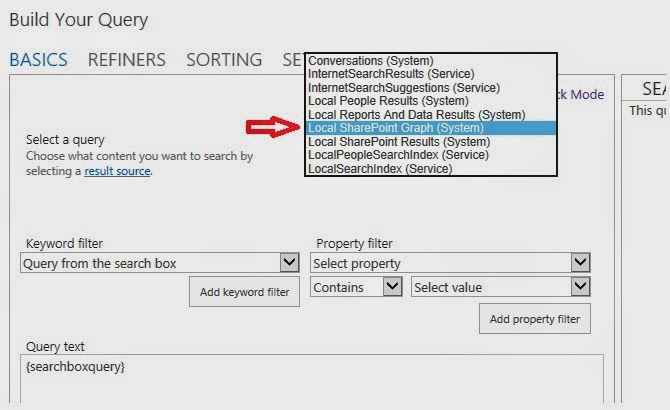
New result source

Interesting artefact is the new result source: “Local SharePoint Graph”
This result source is not shown under SharePoint online administration or in the site settings menu. It’s actually only visible in the Query Builder. Latest news from Microsoft says that the Office Graph gets its own index. We can assume that this new result source is mapped to the new Graph Index. Actually the new result source shows the same results like the “Local SharePoint Results” source.

Stay tuned about upcoming news about Project Oslo & the Office Graph….

Sonntag, 27. April 2014

Chapter 1 - SharePoint 2013 Analytics Feature


First chapter of my tutorial about SharePoint 2013 Analytics Feature is only on itUnity:
Visit us under www.itunity.com                          Follow us on Twitter @itunity01 

Donnerstag, 27. Februar 2014

Query SharePoint Search Analytics using PowerShell

Analytics have been completely revised in SharePoint 2013. Some of the core tech in the previous FAST release has been fused together with SharePoint enterprise search to create a new and powerful analytics engine.
The Analytics Engine is based on two main parts. We have Search Analytics and we have Usage Analytics features. Both parts have own reports which can be found under Site setting and as part of the Search Service Application in Central Admin.
Usage Analytics out-of-the-box report:
Search Analytics out-of-the-box report:

By using PowerShell we can query both Analytics parts and get custom reports.

Usage Analytics:

First of all we have to set the Search Service Application:
 $searchApp = Get-SPEnterpriseSearchServiceApplication

Next step is setting up a site scope for the report:

Now we can execute the request:
$result = $searchApp.GetRollupAnalyticsItemData(1,[System.Guid]::Empty,$Site.ID,[System.Guid]::Empty)

If the report should not have a site focus we had to replace the$Site.ID” part with “[System.Guid]::Empty”.

To focus the report data to a specific day or month we can use the GetHitCountForDay and the GetHitCountForMonth method.
First we had set up the data to which we want to focus:
$FilterDate = Get-Date "2014-01-20"

Then we can use the $FilterDate variable together with both methods:
$result.GetHitCountForDay($FilterDate)
$result.GetHitCountForMonth($FilterDate)

Search Reports:

Search Analytics cmdlets follows a different syntax. To get data from that engine we also had to setup the 

Search Service Application:
$searchApp = Get-SPEnterpriseSearchServiceApplication

Also in this case we can focus to a specific site using a variable:

The difference now is that we had to set up a date time value for the report. Leaving it blank is no option here:
$searchApp.GetSearchReport(1,[System.Guid]::Empty,[System.Guid]::Empty,[System.DateTime]::Now,$false,100)
That command gets the report data for the actual month: [System.DateTime]::Now

The next parameter which is set to falseis the switch for getting data for the month = false or the day = true.
If we want the data for another month than the we have to set up a date variable and use it instead of [System.DateTime]::Now :
$FilterDate = Get-Date "2014-01-20"
$searchApp.GetSearchReport(1,[System.Guid]::Empty,$site.ID,$FilterDate,$false,100)

Getting farm wide data we also had to replace the $site.ID variable with[System.Guid]::Empty”:
$searchApp.GetSearchReport(1,[System.Guid]::Empty,[System.Guid]::Empty,$FilterDate,$false,100)
The first parameter with the value “1” is setting the Event Type. Event Type 1 = views. The next parameter is the TenantID, followed by SiteID, date value, month / day switch and the max result value (100 means show me the top 100 search terms).

Samstag, 22. Februar 2014

Create and use own usage event type in SharePoint 2013


The original technet article says the following about usage event types in SharePoint 2013

“Usage events enable you to track how users interact with items on your site. Items can be documents, sites, or catalog items. When a user interacts with an item on your site, SharePoint Server 2013 generates a usage event for this action. For example, if you want to monitor how often a catalog item is viewed from a mobile phone, you can track this activity. This article describes how to create custom usage event types, and how to add code to record custom usage events so that they can be processed by the analytics processing component. You can use the data that is generated by usage events to show recommendations or popular items on your site. This article also explains how to influence how recommendations are shown by changing the level of importance for a specific usage event type.”

So far, so good. Now let’s see how this can be done because of some code snippets in the original article won’t work very well.
In the following example we will create a custom event called “UseFulPage” and add a button to SharePoint to fire that event.

Step 1: create a custom usage event type


#Connect to SSA
$SSP = Get-SPEnterpriseSearchServiceApplicationProxy
#create Event:
#modify the $EventName varibale to your value
$EventGuid = [Guid]::NewGuid()
$EventName = "UseFulPage"
$tenantConfig = $SSP.GetAnalyticsTenantConfiguration([Guid]::Empty)
$newEventType = $tenantConfig.RegisterEventType($EventGuid, $EventName, "")
$tenantConfig.Update($SSP)
#manipulate the weight of you event by setting RecommendationWeight & RelevanceWeight
$customEvent = $tenantConfig.EventTypeDefinitions | where-object { $_.EventName -eq $EventName }
$customEvent.RecommendationWeight = 10
$customEvent.RelevanceWeight = 10
$tenantConfig.Update($SSP)
#check if the event is created
$tenantConfig.EventTypeDefinitions | select eventTypeId,EventName | ft
The result should be something like that:
The new custom event had several properties and also 2 managed properties (UsageEvent1LifeTime & UsageEvent1Recent) which can directly be used in Search or Search Driven WebParts after the next analytics processing run.
Step 2:  add code to record the custom usage event
In the following script we need the GUID of the event. To get the GUID use this script:

$SSP = Get-SPEnterpriseSearchServiceApplicationProxy
$tenantConfig = $SSP.GetAnalyticsTenantConfiguration([Guid]::Empty)
$tenantConfig.EventTypeDefinitions | select AppEventTypeId,eventTypeId,EventName | ft

To add the event to a SharePoint site I use a JavaScript snippet (thx Markus Alt).
  1. Replace %EventGUID% with the GUID of your custom event.
  2. Replace %URL% with the URL of the site where you place the event. For example: http://intranet.contoso.com
  3. Use a ScriptEditor WebPart to host the script in your SharePoint site.
<script language="javascript">
function ToEventStore(url)
{
    alert("Useful Page Event recorded");
    ExecuteOrDelayUntilScriptLoaded(function()
    {
        var spClientContext = SP.ClientContext.get_current();
        var eventGuid = new SP.Guid("%EventGUID%");
        SP.Analytics.AnalyticsUsageEntry.logAnalyticsAppEvent(spClientContext, eventGuid, url);
        spClientContext.executeQueryAsync(null, Function.createDelegate(this, function(sender, e){ alert("Failed to log event for item: " + document.URL + " due to: " + e.get_message()) }));
    }, "SP.js");
}
</script>

<button onclick="ToEventStore('http://%URL%')">Useful Page</button>

Step 3: work with the event
Clicking the button brings up a message box which tells you that your click is recorded. That means that the event is send to analytics engine and is processed during the next run. So you have to wait until the next day to see the result. By the way: Analytics data is process only once a day. You can configure the schedule using the Set-AnalysisConfiguration cmdlet. Other important point is that only data from last day is processes, not from the actual day. Bella Engen descried in that post how to manually kick the Analytics so there is no waiting until next day to see the data: http://blogs.technet.com/b/tothesharepoint/archive/2014/01/21/modify-the-content-search-web-part-display-template-and-use-windows-powershell-to-start-usage-analytics-in-sharepoint-server-2013.aspx


Kicking the event of cause has an impact to the ranking of that site. Another option to bring the result out is to use the managed property “UsageEvent1Recent” in a Search WebPart as a sort option. Doin this you can build an overview based on search showing the most “Useful Pages” in you SharePoint:


Sonntag, 9. Juni 2013

PowerShell for SharePoint 2013 Analytics Feature

First of all
Thanks a lot to Thomas Molbach from Microsoft. He sends me his Scripts from his Session SPC 202 from last year SharePoint Conference in Las Vegas. So most of the PowerShell commands in this article are based on his scripts.
Working with PowerShell and the new SharePoint Analytics feature means that you have to set up your PowerShell environment first. Using the SharePoint Management Shell as it is won’t work.
Common stuff
To setup up a Management Shell you need to run the following script:

#Set up the Anaytics powershell environment
Add-PSSnapin Microsoft.SharePoint.PowerShell
Add-PSSnapin hostcontrollerpssnapin
Add-pssnapin junopssnapin
Add-pssnapin searchcorepssnapin
Add-pssnapin enginepssnapin
Add-pssnapin analysisenginepssnapin
$env:CERES_REGISTRY_PRODUCT_NAME = "Office Server\15.0\Search\Ceres"
Connect-System -Uri (Get-SPEnterpriseSearchServiceApplication).SystemManagerLocations[0] -ServiceIdentity (Get-SPEnterpriseSearchService).ProcessIdentity
Connect-AnalysisEngine -NodeName AdminComponent1

The major part is: Add-pssnapin analysisenginepssnapin . As you see the Analytics feature is not part of the common SharePoint PowerShell Snapin.
If everything worked fine you get the following status back:

Connected to agent 'AnalysisEngineComponent' of type Microsoft.Ceres.AnalysisEngine.Shared.IAnalysisEngineAgent running

Now we are able to get a full list of available command using:
Get-Command -Module analysisenginepssnapin
Some useful scripts
 
Start Usage Analytics Job:
Start-Analysis UsageAnalytics
 
Start Search Reports Job:
Start-Analysis SearchReports
 
Start Search Analytics Job:
$tj= Get-SPTimerJob -Type Microsoft.Office.Server.Search.Analytics.AnalyticsJobDefinition
$sa = $tj.GetAnalysis("Microsoft.Office.Server.Search.Analytics.SearchAnalyticsJob")
$sa.StartAnalysis()
 
Display Search Analytics Job status info:
$a = Get-SPTimerJob -Type Microsoft.Office.Server.Search.Analytics.AnalyticsJobDefinition
$sa = $a.GetAnalysis("Microsoft.Office.Server.Search.Analytics.SearchAnalyticsJob")
$sa.GetAnalysisInfo()
Display all Analytics Job status info:
Get-Analysis

Samstag, 6. April 2013

SharePoint 2013 Analytics Feature - IT-Pro, DB Admin & PowerPivot issues


This post covers some facts and details about the new SharePoint 2013 Analytics feature. For common stuff about that feature have a look at this TechNet article: LINK
In fact we have two different types of analytics in SharePoint 2013:

·         Search analytics analyzes content that is being crawled and added to the search index

·         Usage analytics analyzes user actions, or usage events, such as clicks or viewed items, on the SharePoint site
Search Analytics & Usage Analytics processing is based on several components. Continuous or incremental crawls must be scheduled and run. Also there are several timerjobs involved:

·         Analytics Timer Job for Search Service Application Search Service Application

·         Microsoft SharePoint Foundation Usage Data Import

·         Microsoft SharePoint Foundation Usage Data Processing

·         Usage Analytics Timer Job for Search Application Search Service Application

For more details about the jobs and job descriptions have a look here: LINK
This picture shows an overview for the new components:

Search analytics

PowerShell
Some Facts:
·         There are some cmdlets for create / delete/ get / move etc.  SharePoint Analytics infrastructure issues:
o   SPEnterpriseSearchAnalyticsProcessingComponent
o   SPEnterpriseSearchLinksDatabase
·         There are no direct PowerShell cmdlets to get informations from the SharePoint Analytics
·         We can use the .dot net SearchServiceApplication class, from Microsoft.Office.Server.Search.dll. in combination with PowerShell to work with SharePoint Analytics
Here is an example script from Radu Tut showing how we can connect via PowerShell to SharePoint Analytics:
$searchApp = Get-SPEnterpriseSearchServiceApplication
$site = Get-SPSite "{SiteUrl}"
$result = $searchApp.GetRollupAnalyticsItemData(1,[System.Guid]::Empty,$site.ID,[System.Guid]::Empty)$result
#for a specific date or for a specific month
$date = Get-Date "2013-01-18"
$result.GetHitCountForDay($date)
$result.GetHitCountForMonth($date)
So for example using the first part of the script:
$searchApp = Get-SPEnterpriseSearchServiceApplication
$site = Get-SPSite "{SiteUrl}"
$result = $searchApp.GetRollupAnalyticsItemData(1,[System.Guid]::Empty,$site.ID,[System.Guid]::Empty)
$result
Gets the following result in my demo environment:

There are two methods available. You can use:
·         GetSearchReport
·         GetRollupAnalyticsItemData
Find complete post and info’s about using this in Radu Tuts blog here:  How to get Search Analytics Reports programmatically in SharePoint 2013

SQL Server DB´s

For me as an old SQL guy it was also interesting to see how this all will be established in SQL Server Databases. In an enterprise environment a direct connect to SharePoint Databases isn´t used in general, two point why this is interesting anyway:
·         It’s interesting to see how the analytics database is used to plan you databases files, partitions etc.
·         Only reading from the database using given functions and stored procedures can of cause be an option.
Additionally configuration overview for your environment can be found here: MSSSearchAnalysisEngineConfiguration in your Search_Service_Application_DB
The interesting table in Search_Service_Application_DB is [dbo].[SearchReportsData].
In this table the data for the Usage & Search reports is stored. The data from yesterday is imported once per day from log folder under:  %InstallDrive%\Microsoft Office Servers\15.0\Data\Office Server\Analytics\EventStore
 
The table shows the result in my demo environment:

Using PowerPivot for Excel we can connect to that table and analyze the data:

Usage analytics


The usage analytics data is stored in the logging database. This article describes how to access the data using SQL Views: LINK
Using these views together with PowerPivot we can create our own reports. Here is an example for RequestUsager showing all sites request by “Administrator” for CA:
Also there is an official way consuming Usage Data directly from the logfiles and use it to feed PowerPivot hosted in SharePoint itself: LINK