Posts mit dem Label Security werden angezeigt. Alle Posts anzeigen

Montag, 4. Mai 2020

Microsoft Teams -The Day After


The main aspect in the context of the current challenge with the COVID-19 situation is that ad hoc solutions are needed to keep companies operational. This includes solutions for homeoffice as well as for meetings with customers and partners.
Regardless of which technical solution is used, at the end of the day the common organizational governance topics come up during the technical planning.

If users can decide individually and independently to create new Teams and channels, invite external users and share content, chaos results.

Who is supposed to organize this again afterwards, and especially, who is supposed to decide which data and which guestuser is still needed?

The fear of this often prevents that Microsoft Teams is used. But in the current situation, solutions and platforms like Microsoft Teams are needed to keep companies and business running.

The Solution

Automated solutions to resolve governance topics such as data chaos, duplicates and orphaned guest accesses are the Azure features around the topics of Identity Governance and Lifecycle Management.

Entitlement Management

Azure AD Entitlement Management is an identity management feature-set that enables organizations to manage identity and access cycles by automating access request workflows, access assignments, reviews and expiration. The following graphic shows an example of the different elements of Azure AD Entitlement Management.
Access Package 1 includes a single Group as a resource. Access is defined with a policy that allows users from a specific Azure AD group to request access.
Access Package 2 includes a Group, an Application and a SharePoint page as resources. Access is defined by two different policies. The first policy allows a group of users in the directory to request access. The second policy allows users from another / external Azure AD to request access.

When an access package is created, we can defines how long the access remains active before it is deactivated again:
An individual access URL is generated for each package. Users then use this to activate the package for themselves:

Access Reviews & Groups Expiration Policies

Azure AD Access Reviews automate the regular review of group memberships, access to enterprise applications and role assignments. This ensures that only those people who need it continue to have access.
Overview:
When an Access Review is created, a user is assigned who must perform the review. This can also be done dynamically based on the Groups / Teams Owner. The reviewer then receives an e-mail that directs him to his upcoming reviews:
The example shows that the first two groups each have only one member and were probably created for test purposes only. The third group has 16 members. Clicking the Begin review button will show the details and the automatically generated recommendations:
Groups Expiration Policies are not shown in the Identity Governance section and must be accessed via Azure AD -> Groups -> Expiration:
Again, the group owner receives a mail in which he must confirm that the Group is still needed. If he does not do it, the Group is automatically deleted. If a Group is deleted, it is "soft-deleted". This means that it can be restored by an administrator for up to 30 days.

Further options

If all this is not sufficient to implement necessary requirements, there are extended possibilities with the features Azure AD Conditional Access and the feature App Management.
Conditional Access controls access to applications based on specific conditions. Conditional access policies are used to implement access control based on the specific context.
Example:
  • Microsoft teams can only be accessed from a company device.
  • E-Mail can be accessed from any device. However, if access is from outside the corporate network, multi-factor authentication is enforced.

App Management (MAM) focuses on compliance with data security policies and data protection requirements as well as actions in case of data loss.
Example:
  • Data from Microsoft Teams is not allowed to be included in the iOS or Android backup.
  • Access with a "jailbroken device" is blocked.

MAM without device registration or MAM-WE (WE=without enrollment) allows IT administrators to manage apps on devices that are not registered in Intune MDM.

Best Practis

At the end, it is not a question of what Azure features and functions are available, but rather what is to be achieved and what exactly the business case looks like. Therefore, start with your scenarios. The second step is then the mapping to the Azure features in order to implement the necessary governance aspects.

Montag, 23. März 2020

Don’t make me think about security in Microsoft Teams


Microsoft Teams is a part of Office 365 and must be licensed along that way. Due to the current situation with the COVID-19 virus, Microsoft has made the Office 365 Feature Teams available free of charge for everyone until 01.2021. The details can be found in this article: https://news.microsoft.com/en-my/2020/03/17/our-commitment-to-customers-during-covid-19/
Many companies and schools around the world have now taken advantage of this offer. The topics Data Security, Data Protection and IT Security often fades into the background behind urgent business needs.

13 steeps to quickly secure you Microsoft Teams environment

Security and also Compliance aspects in Microsoft Teams are configured in the Teams Admin Center. Multiple policy packages can be created for different scenarios, users and groups. A policy package combines settings that relate to typical work processes of these users and groups.

Teams Settings


1. E-mail integration - Security impact: low
E-mail integration allows mail to be sent directly to a Team channel. The content of the e-mail is displayed in the chat in the channel and is visible to all members.
2. Files - Security impact: medium
Enable or disable file sharing and cloud file storage options for the Files tab in teams.
3. Devices - Security Impact: low
Settings for devices in the meeting room.

Meetings & Messaging Policies

Meeting policies are used to control what features are available to users when they attend Teams meetings.
4. Audio & Video - Security impact: medium
The audio and video settings can be used to turn on or off specific functions used in Teams.
5. Content Sharing - Security impact: high
Content Sharing" controls which functions are available in a Teams meeting in this context.
6. Participant & Guest - Security impact: high
The settings for participants and guests control access to Teams meetings.
7. Meeting Settings - Security Impact: high
Meeting settings are used to control whether anonymous users can attend Teams meetings.

8 Live Events Policies - Security Impact: high
Live event policies are used to configure, for example, whether participants can transcribe or whether live events can be recorded.
9. Messaging Policies - security impact: high
Messaging policies are used to control which chat and channel messaging features are available to users in Teams.

Teams Apps

10 Org-wide App Settings - Security Impact: high
This function controls which applications are available to users in Teams. Furthermore, it can be configured which 3rd party apps can be used.
11 App Permission Policies - Security Impact: high
The App Permission Policies control which apps users can use, depending on the settings in the previous step.

Org-Wide Settings

12 External Access - Security Impact: high
External access allows users to communicate with other users outside your organization. By default, users can communicate with all external domains.
13 Guest Users - Security Impact: high
Teams allows users to invite external users to join Teams. When external users are added to a team, they receive an invitation that they must accept before they can access it. Microsoft has provided a checklist for Guest Users in Teams: https://docs.microsoft.com/en-us/microsoftteams/guest-access-checklist  
What rights guest users have is set in the Team Admin Center.
Some permissions are configured directly in Teams.

Advanced Features (Office 365 E3 / E5) - Information Protection and Labeling for Teams

Microsoft has consolidated the topic of classification / labeling under the name Unified Labeling, which can be found in the Office 365 Security & Compliance Center. The menu Classification->Sensitivity Labels let you create labels that also affect Microsoft teams.
Encryption:
Who can access files and e-mail messages that are labeled, regardless of the user rights that person has in Teams.
Content labeling:
Add custom headers, footers, and watermarks to email messages or documents that are labeled.
Prevent data loss:
Currently, only endpoint DLP features offered by Windows Information Protection (WIP) are available. DLP settings for Office 365 applications will be available soon.
Site and Group Settings (also affecting Microsoft Teams):
Note that these settings are not applied to files, so they have no effect on downloaded copies of files.
Auto-labeling for Teams:
An auto label policy always includes the location of a file. For example, all files that are stored in a particular Team can automatically get a label. This function can be supplemented by rules that only assign the label if the defined parameters also exist, such as a specific phrase in a document.


Montag, 14. Oktober 2019

Azure specific Security Tooling


Azure specific Security Tooling Overview


Samstag, 5. Oktober 2019

Microsoft Security Stack - When to use what


When to use what – Azure Sentinel, CASB, Azure Security Center, Security & Compliance Center in Office 365, etc.

Many customers using Microsoft Cloud Services in the context of collaboration und communication often asked the “When to use what” question. Meanwhile we had several really good methods and tools to answer this question like the Periodic Table of Office 365. At the end it is not about when to use what, it is about “what do you want to do” or “what is your business case”? And this is the same with the Microsoft Security Features & Services.

Features & Services

Microsoft Azure Sentinel is a cloud-native SIEM solution with advanced AI and security analysis capabilities.

Microsoft Cloud App Security is a multimode Cloud Access Security Broker (CASB). It provides rich visibility, control over data travel, and sophisticated analytics to identify and combat cyberthreats across all your cloud services. Further infos about CASB

Azure Security Center provides unified security management and advanced threat protection across hybrid cloud workloads.

Office 365 Security & Compliance Center is designed to manage security & compliance features across Office 365. Links to existing SharePoint and Exchange compliance features bring together compliance capabilities across Office 365.

Microsoft Intune is a management solution that provides mobile device, endpoint and operating system management. It aims to provide Unified Endpoint Management for corporate devices and BYOD.

Azure Active Directory (Azure AD) is Microsoft’s cloud-based identity and access management service. It covers resources, such as Microsoft Office 365, the Azure portal, and thousands of other SaaS applications along with any cloud apps developed by your own organization.

Microsoft Information Protection helps an organization to classify and protect its documents and emails by applying labels. It helps you discover, classify, label and protect your sensitive information – wherever it lives or travels. Further infos about Information Protection

Protect your enterprise from threats in the cloud and on-premises with Azure Advanced Threat Protection. ATP is a cloud-based security solution that leverages your on-premises Active Directory signals to identify, detect, and investigate advanced threats, compromised identities, and malicious insider actions directed at your organization.

Microsoft Defender Advanced Threat Protection (ATP) is a unified platform for preventative protection, post-breach detection, automated investigation, and response. Microsoft Defender ATP is built into Windows 10.


Typic discussions with customers

Azure Sentinel vs. Azure Security Center

Azure Security Center is focusing on Azure workloads. Azure Sentinel is used to for real-time event and detecting attacks covering your hole architecture.
Quote by Microsoft: To reduce confusion and simplify the user experience, two of the early SIEM-like features in Security Center, namely investigation flow in security alerts and custom alerts will be removed in the near future. Individual alerts remain in Security center, and there are equivalents for both security alerts and custom alerts in Azure Sentinel. Going forward, Microsoft will continue to invest in both Azure Security Center and Azure Sentinel. Azure Security Center will continue to be the unified infrastructure security management system for cloud security posture management and cloud workload protection. Azure Sentinel will continue to focus on SIEM. Source: Securing the hybrid cloud with Azure Security Center and Azure Sentinel


Azure Security Center vs. Security and Compliance Center in Office 365

The Office 365 Security & Compliance Center is designed to help you manage security & compliance features across Office 365. Links to existing SharePoint and Exchange compliance features bring together compliance capabilities across Office 365. Azure Security Center analyzes data from a variety of Microsoft and also partner solutions. To take advantage of this data, machine learning for threat prevention, detection, and eventually investigation. Both services are part of the Microsoft Service Trust Platform


Azure Sentinel vs. CASB

Azure Sentinel is a SIEM solution with advanced AI and security analysis capabilities. It integrates with third-party security platforms from vendors such as Fortinet, Symantec and Check Point, as well as Microsoft's Graph Security API. By connecting with Microsoft Cloud App Security, you will gain visibility into your cloud apps, get sophisticated analytics to identify and combat cyberthreats, and control how your data travels.


Office 365 Security Features vs. Intune

Microsoft Intune and built-in security features in Office 365 for MDM both give you the ability to manage security & compliance in your environment. You can manage security & compliance using both Intune and Office 365 in the same Office 365 tenant. If you have both options available, you can choose whether you manage security & compliance in Office 365 or the more feature-rich Intune solution for MDM and MAM scenarios.


Azure AD vs. Intune

Intune manages mobile devices and apps. It integrates closely with other EMS components like Azure Active Directory for identity and access control.


Azure Advanced Threat Protection vs. Microsoft Defender ATP

Azure Advanced Threat Protection enables you to integrate Azure ATP with Windows Defender ATP. While Azure ATP monitors the traffic on your domain controllers, Windows Defender ATP monitors your endpoints, together providing a single interface from which you can protect your environment. By integrating Windows Defender ATP into Azure ATP, you can leverage the full power of both services and secure your environment. Source & Details: Integrate Azure ATP with Windows Defender ATP


Roundup

As you can see all this features work together like for example Microsoft Defender Advanced Threat Protection integration with Microsoft Cloud App Security or Azure Information Protection integration with Cloud App Security So trying to find the best tool / solution for your enterprise only discussing the detailed features isn’t the best way.

How to get started

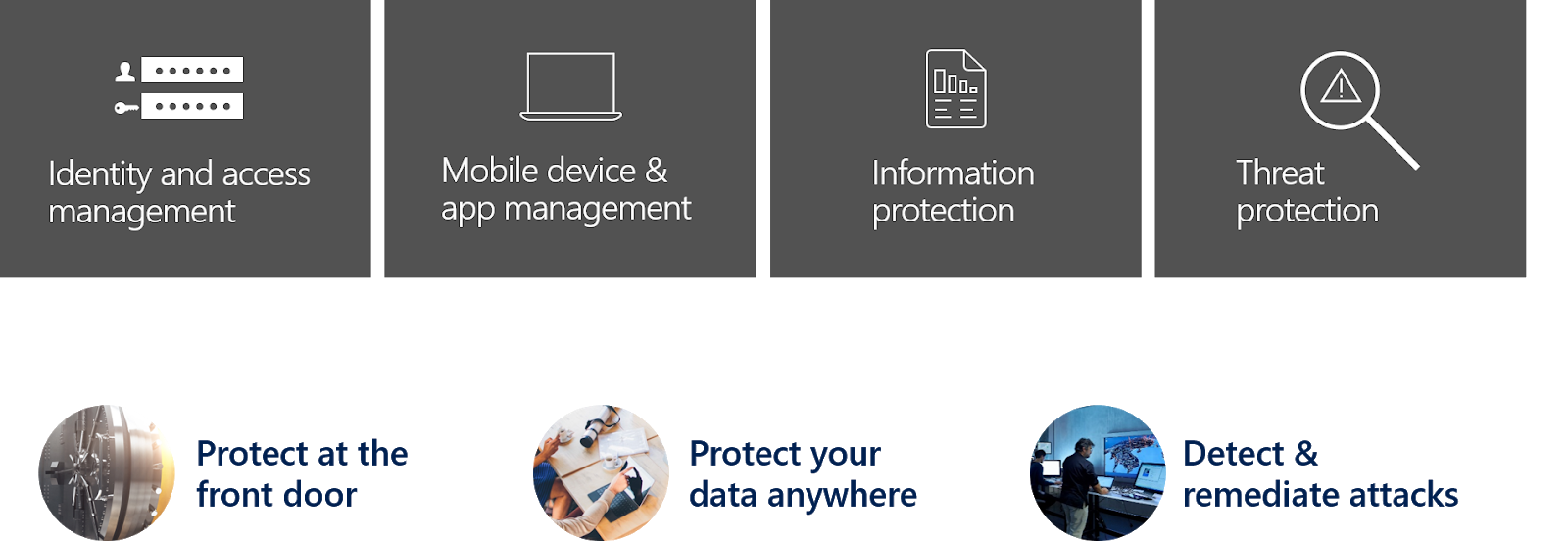
To get a solid Security & Compliance strategy based on the Microsoft Security Stack the best way is to start with your scenarios. Dealing with the Microsoft Security Stack a best practices approach is to separate the topics like this:

Next step is to map the scenarios:
  • Protect at the front door
  • Protect your data anywhere
  • Detect & remediate attacks
to those 4 categories / topics:
  • Identity and access management
  • Mobile device & app management
  • Information protection
  • Threat protection

Periodic table & mapping

Microsoft offers a good overview to tweak your scenarios in this article Top 10 Actions to Secure Your Environment. Based on this the following overview offers a blueprint to get started with your security strategy:

Architecture


Roundup

From a planning and architecture perspective the features and services must be separated in monitoring solution and solution used to natively setup regulations and policies.
For example: You can use Information Protection to protect you content and E-Mails and in addition you can integrate the Logs and Signals coming from Information Protection to Azure Sentinel. But natively you cannot use Azure Sentinel to protect you content and E-Mails.
So at the end it is all about your scenarios!

Mittwoch, 7. August 2019

Updates & News around Microsoft Information Protection

In the last couple of weeks Microsoft release a bunch of new features / versions for Information Protection and Unified Labeling:
  • New features & functions with Microsoft Cloud App Security and Azure Information Protection
  • Azure Information Protection unified labeling client
  • Update to Unified labeling

Cloud App Security and Azure Information Protection

Cloud App Security and the integration with Azure Information Protection is not new. If you are already migrated to Office 365 unified sensitivity labels and if you did not migrate your existing classification labels you need to know:  Creating new labels in the Office 365 Security and Compliance Center, Cloud App Security will only use the preexisting labels configured in the Azure Information Protection portal.

Integrating Azure Information Protection into Cloud App Security you get the ability to:
  • apply classification labels as a governance action to files that match specific policies
  • view all classified files in a central location
  • investigate according to classification level, and quantify exposure of sensitive data over your cloud applications
  • create policies to make sure classified files are being handled properly
This integration is focusing to scenarios like:
  • Visibility on sensitive data in managed cloud apps
  • Compliance / Risk Enforcement
    • Apply label to documents in cloud apps repositories
    • Prevent storage of highly sensitive documents in the cloud
  • Sensitive data reporting in AIP analytics space
  • Detect anomalous access
  • Block download of sensitive document from specific locations or non-compliant device
  • Block upload of sensitive documents

You need both a Cloud App Security license and a license for Azure Information Protection. Then Cloud App Security syncs the labels from Azure Information Protection. This action is performed every hour.
Scanning the files:
  • Automatic scan: all new or modified files are added to the scan queue and will be scanned, classified and protected
  • File policy to search for classification labels: these files are added to the scan queue for classification labels

After you enable Azure Information Protection on Cloud App Security, all new files that are added to Office 365 will be scanned and you can create new policies within Cloud App Security that apply classification labels automatically.
More Details: How to integrate Azure Information Protection with Cloud App Security

Azure Information Protection unified labeling client

Highlights of version 2.2.19.0:
  • Support for labels that are configured for user-defined permissions for Word, Excel, PowerPoint, and File Explorer
  • Support for advanced settings with PowerShell for the Security & Compliance Center
  • New cmdlet New-AIPCustomPermissions to create an ad-hoc policy for custom permissions
  • New parameters added to Set-AIPFileClassification:-WhatIf and -DiscoveryInfoTypes so that this cmdlet can run in discovery mode without applying labels

Download and further information: Version 2.2.19.0

Actually, we have two management portals which are supported by different clients:
  1. Azure Information Protection:
    • Azure Information Protection client (classic)
    • Azure Information Protection scanner
    • Microsoft Cloud App Security

  1. Unified labeling in Office 365 Security & Compliance Center:
    • Azure Information Protection unified labeling client
    • Microsoft Cloud App Security
    • Office apps for MacOS, Android and iOS
    • Information Protection SDK and applications based on it like Adobe Acrobat
    • Coming Soon:
      • SharePoint Online
      • Office Online, Outlook Mobile for iOS and Android
      • Built-in labeling in Office for Windows
      • Azure Information Protection scanner

Update to Unified labeling

Unified labeling is not activated per default and Azure Information Protection labels can be used only by the Azure Information Protection client. To make labels available in the Office 365 Security & Compliance Center and to use the unified labeling client you need to Activate that integration:

Before you activate unified labeling, check in Office 365 that you don't have labels that have the same name or display name as your labels in Azure Information Protection. Note that Azure Information Protection labels will be automatically renamed so that migration can succeed. Once activated you cannot deactivate unified labeling for your tenant. Learn more about the migration process.

Unified labeling: Activated

Depending on how many labels do you have the updated takes some time. After it is done you can manage your labels from either the Azure portal or the Office 365 Security & Compliance Center. The labels can be used by the Azure Information Protection client and by unified labeling clients.

Note: you must use the Publish option after the migration to make the labels available in the unified labeling clients. Otherwise the client is showing an error like this:


Montag, 27. Mai 2019

Security Features Matrix in Office 365 and Azure

UPDATED VERSION 1.1. availible

  • The matrix gives you an overview about security feature in Microsoft cloud stack including info about:
  • focus-area of the feature
  • a overview description plus hyperlink for further information
  • info about how to license the feature.
Screenshot:


Download the complete Matrix: LINK

  • added Azure Sentinel PREVIEW


Further interesting and helpful links:


Freitag, 15. März 2019

Focusing Cloud App Security Policies to dedicated Objects


In CAS we can focus policies to dedicated object. For example, you have a SharePoint Online Site with sensitive content, and you will get informed if a user is doing a mass download.
We can use the “Mass download by a single user” template to set up a policy:

In the filter section if the policy select “edit and preview results”:

In the shown activities list search for the location or event ion which you will filter. In my demo I take https://sharepointtalk.sharepoint.com/teams/SearchDemo2:

Selecting “Activity Objects” opens a report with all objects and its ID´s. To filter on the SharePoint SiteCollection URL we need the second one:

Now we can use this ID as a filter: