Posts mit dem Label Search Driven werden angezeigt. Alle Posts anzeigen

Sonntag, 30. Juli 2017

Overview of shared with Externals and shared Anonymous in Office 365

The GDPR highlights the need for protection of personal data held by organizations. To be able to do this Microsoft inverted a lot in new features and functions like the Office 365 Security & Compliance Center or the GDPR Assessment.
One of the backend systems helping to fulfill those regulations is the SharePoint Online Search Service. In the SharePoint Online Search schema, we can find two managed properties focusing on sharing and access from outside of your organization.
ViewableByExternalUsers and ViewableByAnonymousUsers
Both had the same setting: Query, Retrieve, Refine and Sort. So we can use them to create some reports based on search queries.

Personal overview

Office 365 let every user search in his SharePoint Online sites, OneDrive for Business files and also in Emails for content. In this scenario Email is of topic. But using this search function at the landing page of Office 365 a user can create a personal overview of content he shared to externals or anonymous.
To do this a user needs to fill in the following query in the search box at the Office 365 landing page:
ViewableByAnonymousUsers=true


In this example, I search for documents located in SharePoint Online sites or in my personal OneDrive for Business which are shared based on an anonymous guest link.
Using the query ViewableByExternalUsers=true shows me the files shared with external users through a sharing link that requires them to log in before they can view the file.
This gives a user an overview of documents he has shared from his OneDrive for Business with externals or anonymous. Because the URL is generic you can use this link for all your users and every user get his person overview: https://www.office.com/search?auth=2&home=1&q=ViewableByAnonymousUsers%3Dtrue
Also you can use this link to create a tile in the Office 365 App Launcher as described in the article: Add custom tiles to the app launcher
The result may look like this:

Team Site overview

Microsoft integrated a new out the box reporting capability in every Team Site. The article: View usage data for your SharePoint Online site is showing all details you need to know. There is also a new tab called “Shared externally”.
The article says: List of files you have access to that have been shared with users outside your organization through a sharing link that requires them to log in before they can view the file. Files shared with anonymous users or files available to users with guest permissions are not included.
To get a list of files shared anonymous in this Team Site we can again use the query: ViewableByAnonymousUsers=true followed by a path filter like for example: path:https:\\yourTeamSiteName.sharepoint.com.

Using Search Center to get an overview

As an administrator, you can also use the search center to get an overview of anonymous shared content or about data and also SharePoint Online Sites them self, shared to externals. The queries are basically the same and you can extend them with additional keyword queries properties.
For example, search all Office 366 Groups external users can access:
ViewableByExternalUsers=true contentclass:sts_site WebTemplate:GROUP
(Because of security trimming in SharePoint Search the user who runs the query needs access to all Team Sites to gets an complete report.)
Of cause there are also options archiving this using PowerShell for Office 365 Groups or using Reports in the Office 365 Security & Compliance Center. Using the SharePoint Online search gives you the power and flexibility to integrate all managed properties as metadata in you report like for example ViewsLifeTime, LastModifiedTime, CreatedBy or ModifiedBy. In addition you can easily scope your report to only show documents using the IsDocument=true query parameter or to focus to special Site Templates like WebTemplate:GROUP to only show Office 365 Groups Team Sites etc.

Using PowerShell to get the report

Using PowerShell to get results from SharePoint Online Search also offers the option to save the report as an *.csv file. To call SharePoint Online Search API using PowerShell and save the result to an *.csv file you can follow the steps explained by Prasham Sabadra in his article Office 365/Sharepoint Online - PowerShell Script To Call Search API And Get The Result.
This example is based on his description. The report is showing all external shared content and sites in an Office 365 Tenant and is saving the result to C:\Temp\ViewableByExternalUsers.csv
# add references to SharePoint client assemblies and authenticate to Office 365 site - required for CSOM   
Add-Type -Path "C:\Program Files\Common Files\Microsoft Shared\Web Server Extensions\16\ISAPI\Microsoft.SharePoint.Client.dll"   
Add-Type -Path "C:\Program Files\Common Files\Microsoft Shared\Web Server Extensions\16\ISAPI\Microsoft.SharePoint.Client.Runtime.dll"   
Add-Type -Path "C:\Program Files\Common Files\Microsoft Shared\Web Server Extensions\16\ISAPI\Microsoft.SharePoint.Client.Search.dll"
#Specify tenant admin and URL 
$User = "Admin@yourTenant.onmicrosoft.com"   
#Configure Site URL and User 
$SiteURL = "https://yourTenant.sharepoint.com"  
#Password 
$Password ="yourPassword"   
$securePassword = ConvertTo-SecureString -String $Password -AsPlainText –Force  
$Creds = New-Object Microsoft.SharePoint.Client.SharePointOnlineCredentials($User,$securePassword)
#client context object and setting the credentials  
$Context = New-Object Microsoft.SharePoint.Client.ClientContext($SiteURL) 
$Context.Credentials = $Creds
#Calling Search API - Create the instance of KeywordQuery and set the properties 
$keywordQuery = New-Object Microsoft.SharePoint.Client.Search.Query.KeywordQuery($Context)  
#Sample Query - To get the last year result 
$queryText="ViewableByExternalUsers=true" 
$keywordQuery.QueryText = $queryText 
$keywordQuery.TrimDuplicates=$false 
$keywordQuery.SelectProperties.Add("LastModifiedTime") 
$keywordQuery.SelectProperties.Add("ViewsLifeTime") 
$keywordQuery.SelectProperties.Add("ModifiedBy") 
$keywordQuery.SelectProperties.Add("ViewsLifeTimeUniqueUsers") 
$keywordQuery.SelectProperties.Add("Created") 
$keywordQuery.SelectProperties.Add("CreatedBy") 
$keywordQuery.SortList.Add("ViewsLifeTime","Asc")
#Search API - Create the instance of SearchExecutor and get the result 
$searchExecutor = New-Object Microsoft.SharePoint.Client.Search.Query.SearchExecutor($Context) 
$results = $searchExecutor.ExecuteQuery($keywordQuery) 
$Context.ExecuteQuery() 
#Result Count 
Write-Host $results.Value[0].ResultRows.Count
#CSV file location, to store the result 
$exportlocation = "C:\Temp\ViewableByExternalUsers.csv" 
foreach($result in $results.Value[0].ResultRows) 
$outputline='"'+$result["Title"]+'"'+","+'"'+$result["Path"]+'"'+","+$result["ViewsLifeTime"]+","+$result["ViewsLifeTimeUniqueUsers"]+","+$result["CreatedBy"]+","+$result["Created"]+","+$result["ModifiedBy"]+","+$result["LastModifiedTime"] 
Add-Content $exportlocation $outputline  
}

Samstag, 10. Dezember 2016

Experts Inside South Africa Event


Experts Inside South Africa invites you to an an exclusive event to showcase and discuss some of the latest offerings from Microsoft in the Office 365 and Hybrid ecosystems. We’ll be looking at some of the newest and most exciting Office 365 product, Teams, as well as practical guidance to better managing and levering experiences in Delve, Search, the Office Graph and more.

These sessions will be presented by two of Expert Inside’s principle consultants and MVPs, Hilton Giesenow (South Africa) and Nicki Borell (Germany). We look forward to seeing you there! 

Enterprise Search

Many excellent blog posts, interviews and videos about SharePoint and Office 365 search, Delve and Office Graph certainly
exist. This session differs by showing real-world customer scenarios and solutions including the user stories, end-user and
decision maker perspectives and how Delve formed the primary component of an Office 35-based global Intranet. Topics
include data security and privacy aspects and concerns. 

Microsoft Teams

Nearly 2 decades of enterprise social and collaboration technologies from Microsoft have resulted in what looks to be the
company’s most powerful, intuitive, integrated and mobile-capable toolset. Only just in it’s first release (Nov 216) it already
rivals market leaders like Slack, even surpassing it in some areas. Is this the Slack killer some claim? Will it replace Yammer
altogether? In this session we’ll see how Teams works and address and discuss these and other topics.

PnP Partner Pack – Microsoft’s Free Provisioning, Branding and Governance Toolset

The Office 365 Patterns and Practices team comprises experts from around the globe, both within and external to Microsoft,
who provide guidance, tools, libraries and scripts to better provision and maintain Office 365 and on premises SharePoint
sites, lists, libraries and more. One of their recent projects, the PnP Partner Pack, packages many of these existing solutions
into a free turnkey solution to manage provisioning, managing, maintaining and governing solutions, branding, responsive 
design and other elements across SharePoint, Groups, Yammer and other Office 365 workloads. This session examines 
aspects these and other aspects like like self service site creation, site templates and governance automation.

Mittwoch, 10. September 2014

First version of Delve is available

The first version of Delve formerly known as “Project Olso & Office Graph” is now available.

So what exactly is Delve? Here is what Microsoft says:

Delve (Codename Oslo) & Office Graph
Delve (Codename Oslo) is the first experience to use the power of the Office Graph. Delve is a new way to search and discover content across Office 365 based on personalized insights. Delve will be available as a Windows 8 app, on mobile devices, and integrated in the Office 365 web experience. Office Graph is an underlying technology and a suite-wide intelligence fabric that will help you discover content and make new connections. The Office Graph analyzes signals and applies machine learning. Personalized insights are built up for each user, based on their behavior, their relationships to content, topics and one another. Content and signals are captured from Exchange Online, SharePoint Online, and Yammer.

The Delve feature is located in the Office Bar at the top of the O365 site. Delve is only available for O365.

Here are some additional useful links:

Delve shows content from SharePoint team sites and OneDrive for business content. In the future, we will see more content sources to push content to the Office Graph, such as email attachments, meetings, group content, video portal content, Yammer signals/shares etc. We will also see an API for Delve in the future. The API will probably be a REST-based API supporting CRUD operations.

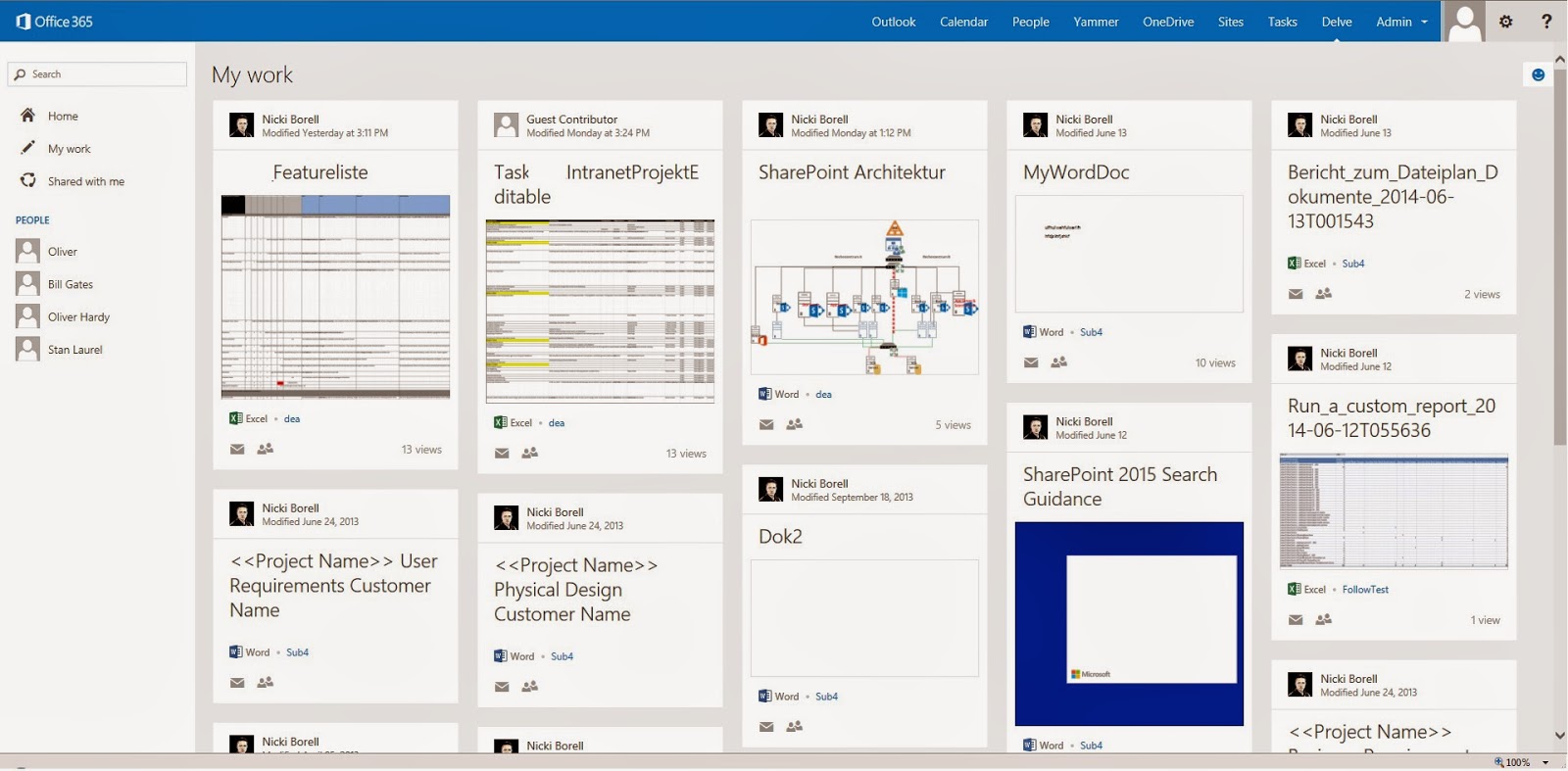
Delve looks like this:

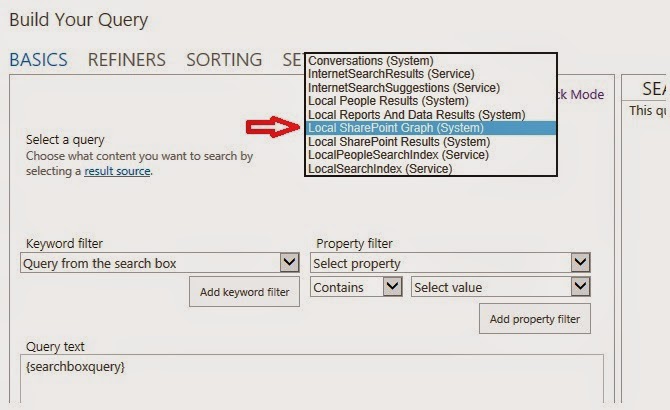
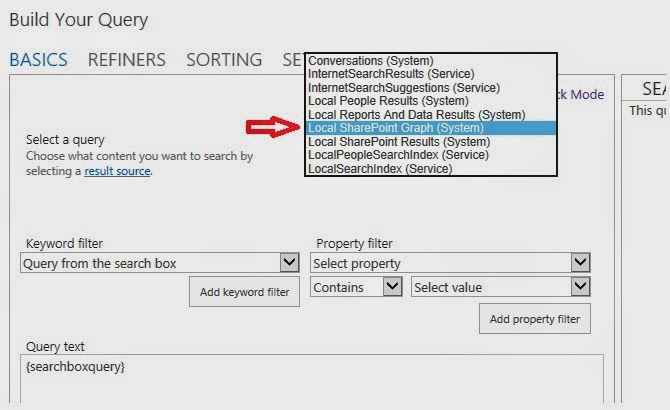
Going to Query Editor in a search result webpart we can see a new Result Source:

This result source is not shown under SharePoint online administration or in the site settings menu. It’s only visible in the Query Builder. The Office Graph gets its own index. We can assume that this new result source is mapped to the new Graph Index. The new result source is not showing any results using it in a search result web part.

Is Delve only another content aggregation?

In SharePoint / SharePoint Online, we have several sites and web parts showing content based on search and social indicators:
·         My Documents
·         Recent Documents
·         Docs I'm following
·         Suggested documents to follow
·         Documents Shared with Me
·         Documents we have in common


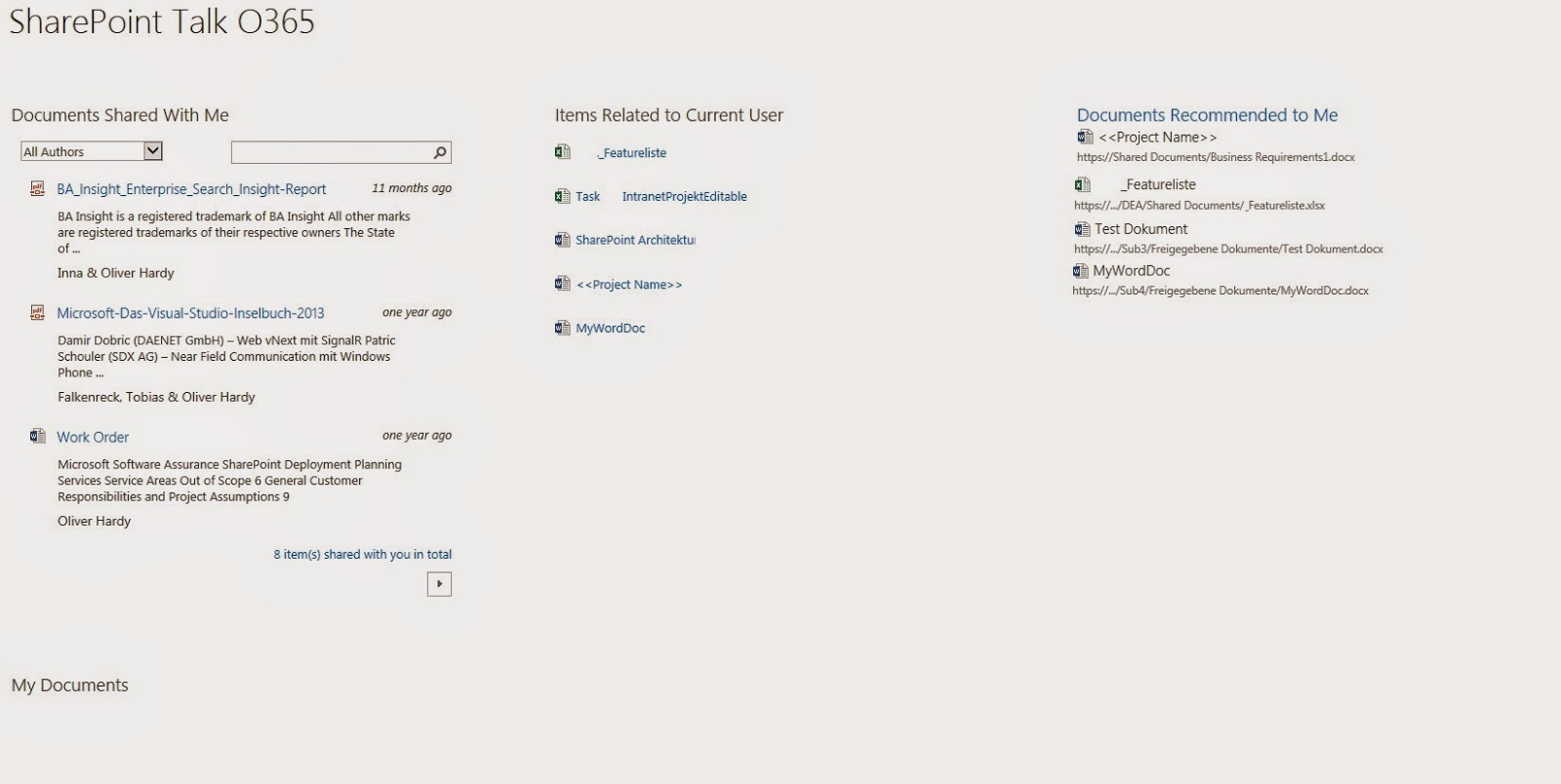
Aggregating all this in one page shows that the content is mostly related:

So is Delve only an aggregated view of all this? No it is not! Delve is based on the Office Graph, which is a kind of machine learning to map the relationships between people, content, and activity that occurs across Office 365.
To give you an idea how this works, let’s have a look at the following example.
As part of Google, we have an Analytics engine called Google Trends. http://www.google.com/trends/
I use this engine to get the following report.
  • Search term 1: Hangover
  • Search term 2: Vodka
  • Entity: Time

That means: Item1=Hangover Item2=Vodka

Item to Item recommendation shows a correlation between this to search terms / items at the end of December every year – at New Year's Eve ;-)

There is a correlation between these search terms and the date New Year’s Eve. In Delve it would be two people who are working both on the same document and because of this correlation, the system (Delve) is showing that document in the context of “trends around me.” The backend logig, algorithems and ranking models of Delve respect those correlations based on so called “signals” A signal for example is generated whene a user clicks on a document etc.  SharePoint Analytics works in a similar way. In SharePoint Analytics we talk about “events” which is the same like a “signal” in Delve / Office Graph. Both techniques are collecting, aggregation and analyzing what user are doing and is generating correlations  between content and content and users. Both solution Delve / Office Graph and SharePoint Analytics doing similar analytics but Delve is going a step forward and will soon also integrate Yammer and other components from O365.
To complete this, let’s have a look at how the SharePoint features like Items “Related to Current User” or “Suggested documents to follow” works.
“Items related to current user” is based on a result source. This result source can be used in a content search web part:


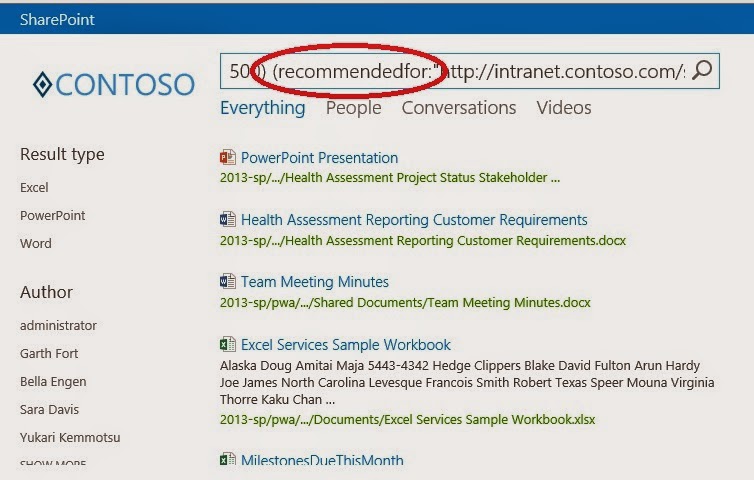
“Suggested documents to follow” is based on the managed property “recomendetfor”

Roundup

So the following features are based on SharePoint Search and SharePoint Analytics. They are part of SharePoint on-prem and can be used without Office Graph and Delve.
  • My Documents
  • Recent Documents
  • Docs I'm following
  • Documents Shared with Me
  • Documents we have in common
  • Suggested documents to follow (with social impact)
  • Items related to current user (based on a system result source)
Delve is based on search driven solution and the Office Graph, but this is not SharePoint Search or SharePoint Analytics. Delve has its own index and its own backend system as part of Office 365. Delve is not available as part of SharePoint search-driven solutions or WebParts. Also the Office Graph can not used as a result source in SharePoint Search Querys or Search WebParts. It’s a separate and independent solution.
  • Delve

When you add Delve on top of the traditional search results, this all can be a little bit confusing for end users and decision makers; a company needs a strategy for all of this. I think that Delve is the future of all these ideas and techniques. Delve will get an addition push with the upcoming Phone and Windows Apps, which allows us to get access to all this using mobile devices and without using the web interface of Office 365.
Again, you need more description here. How is this related to the bullet list above?
Belonging to comment NB5: Delve is new and not based on SharePoint Search or SharePoint Analytics feature. Delve had its own index and its own backend system the Office Graph. All this is not available in std. Search Driven Solutions build with  regular SharePoint Features like in the “Search Based” bullet list.

Samstag, 21. Juni 2014

Project Oslo and the Office Graph – first indications

At this year SPC in Las Vegas, Microsoft introduced codename Oslo and the Office Graph. If you want to see how the product should look watch this YouTube video:

Microsoft is working on the product. The TAB program is about to start and Oslo is now appearing with status "started" on Yammer release Schedule: https://about.yammer.com/success/engage/grow-your-network/release-schedule/
In my Office 365 Tenant belonging to my MSDN Subscription I also found the first indications. I have a look in several other Tenants and can actually not found anything of this. Not sure it´s because of this Tenant is part of an MSDN Subscription.

New result source

Interesting artefact is the new result source: “Local SharePoint Graph”
This result source is not shown under SharePoint online administration or in the site settings menu. It’s actually only visible in the Query Builder. Latest news from Microsoft says that the Office Graph gets its own index. We can assume that this new result source is mapped to the new Graph Index. Actually the new result source shows the same results like the “Local SharePoint Results” source.

Stay tuned about upcoming news about Project Oslo & the Office Graph….

Freitag, 28. Februar 2014

Problems fixed by CU´s in SharePoint 2013 Search since release

March 2013 update
Server: KB 2767999
Foundation: KB 2768000
    • When you perform a search on a SharePoint Server 2013-based server, you experience performance problems on the server.
    • The output cache feature does not work on a page on a SharePoint Server 2013 site. This issue occurs when the page contains a Content By Search (CBS) web part.
    • Assume that you use the Cross-Site Publishing feature to create a site on a SharePoint Server 2013-based server. When you perform a search on the site, the search results is greater than the expected number.
    • Assume that you access a SharePoint site that is not in your trusted sites list. When you try to search an item on the site, you receive the following error message:
      • “The display template had an error. You can correct it by fixing the template or by changing the display template used in either the Web Part properties or Result Types.”
    • When you try to perform a search crawl on a list that contains many columns in SharePoint Server 2013, you receive the following error message:
      • “The filename or extension is too long”
    • Assume that you filter data in an Access form on a non-English version of a SharePoint Server 2013 server. In this situation, Full-Text Search in SQL Server does not work correctly. More specifically, the filtering operations are slow or return incomplete results.
    • When you perform a search in a SharePoint Server 2013 search center in backward compatibility mode, the out of box (OOB) site refiner returns incorrect results.
April 2013 update
Server: KB 2726992
Foundation: KB 2751999
  • Assume that you install multiple Search Service applications in SharePoint Server 2013. When you use a Search Service application to crawl a site, managed properties are not displayed in the Search Service application. Instead, the managed properties are unexpectedly displayed in another Search Service application. 
June 2013 update
Server: KB 2817414
Foundation: KB 2817346
  • When you pass query parameters to query rules from Search Web Part on a SharePoint Server 2013 site, the search results are not updated. 

August 2013 update

Server: KB 2817616
Foundation: KB 2817517
  • When you remove a SharePoint Server 2013 server from a SharePoint Server 2013 farm, the search admin component on another SharePoint Server 2013 server crashes continuously.

October 2013 update

Server: KB 2825647
Foundation: KB 2825674
  • This update improves the stability of search components in large server farms.
  • The language selection drop-down list on the search page does not extended fully.
December 2013 update
Server: KB 2850024
Foundation: KB 2849961
  • When you add a friendly URL or a URL to a non-published item under Search Center Navigation on a SharePoint Server 2013 site, you receive the following error message:
    • Sorry, something went wrong
    • An unexpected error has occurred. 
Service Pack 1
Server: KB 2817429
Foundation: KB 2817439
  • Search schema compression is now enabled by default to allow larger search schemas.
  • Highlighting for FQL queries is now enabled for FQL as well as KQL.

Freitag, 8. März 2013

Building Search Driven Solution with SharePoint 2013 Part I

Part I is about Search Driven in on-premise environments
Part II will show the options and differences with O365 SharePoint Online
Search Driven Solutions are not new in SharePoint 2013. But with SP2013 they reached a new dimension and there are much more out-of-the-box Webparts and options to work with content that is in your search index.

Admin Stuff

Why to use Search Driven? Good question. Let’s ask “why not”? The answer is the index latency. Search Driven Solutions are based on the search index and that means that the data freshness depends on the index freshness. With new feature Continuous Crawling and other solutions like Event Driven Crawling we can realize a really up to date index. Depending on you environment you can realize an index freshness in the scope of 2 minutes or so. Some other points in the context of Search Driven Solutions are:

·         Separate presentation from storage

·         Flexible and dynamic

·         Breaking down site collection boundaries

·         Eliminate large list thresholds

·         Allows flexible & dynamic publishing

 
Special Data means Special Search and special Search Results

Not in every case we have to choose between normal SharePoint Search and Search Result Webpart ore using Search Driven Solutions. There is a very useful and powerful option between. With SharePoint 2013 there are some new features. In the context of “Special Date means Special Search and special Search Results” we will now have a closer look on “Result Source” and “Query Rules”.
Result Source

Working with search based solutions mostly we start with a “Result Source”. Result Sources are places under Site Settings or if you would configure them for the complete farm in the search service application. A Result Source had some basic parameters:

Protocol: defines from where the results are coming
Type: focused between content and people search
Query Transformation: gives us the option to focus which data is shown in this Result Source using Search Syntax. Also we had the option using the Query Builder to define the Query Transformation.
To use a Result Source we had to configure search result Webpart to use this source. This is simply configured in the settings of the result Webpart:

Query Rules

Query Rules are used to manipulate search query. A Query Rule always based on a Result Source. That’s why we have to start with a Result Source. Query Rules are also based in the site setting ore in search service application. Working with Query Rules we had two main parameters.
1.       Query Condition: this parameter defines under which condition the Query Rules take effect.
To do this we had several options. The easiest way is “Query matches Keyword exactly”. But we also can use Termstore using the option “Query matches Dictionary exactly” This brings many powerful options. For example if you extend you Termset which is referred you not need to reconfigure you Query Condition. Also in Multilanguage environment this can be useful.
2.       Actions: The section configures what should happen if a Query matches.
We can configure a promoted result which is similar to Best Bets we know from SharePoint 2010 are we can place a Result Block.
Result Blocks are a new feature that allows us placing a separate block containing the data we configured based on our Result Source in top of the search result Webpart. Every Result Block can be configured using Query Builder. For example if you will use a special Result Block only showing pictures the configuration should be like this one:
·         Query: {subjectTerms} contenttype:image
·         Settings: Item Display Template -> Picture Item
Display Templates are also a new feature in SharePoint 2013. They allow us to use different visualizations based on content type or so. Details see here: LINK
As shown in this screenshot:
Bring all this together we can deliver special search for special data.
To get a result like this we had to configure a Result Source, based on this Query Rules and then use the Result Source in a search result Webpart. Detail Step by Step walkthrough is shown in the Webcast at the end of the post.
Search Driven Publishing Model
The above solutions are all based on a search query which had to be filled in a search box by a user or had to be configured as a “fixed keyword query” in the settings of the search result Webpart. Now let’s see how we can create dynamic pages showing content based on Search Querys using the new Webpart Family “Search Driven Content”.
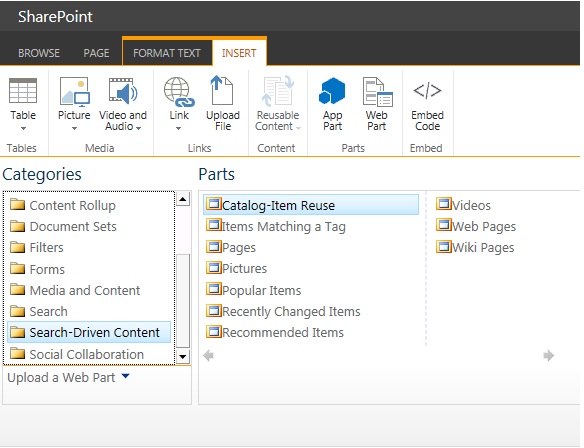
As you can see there are preconfigured Webparts for different scopes. The context driven Webparts like “Popular Items” and “Recommended Items” are based on search analytics, user context and user activity. Other ones like “Pictures” or “Pages” containing a special visualization based on the contented type. The “Search Driven Content” Webparts can also be used to visualize search results based on a search query which is typed into a search box. All search Webparts can combined which each user. This is used configuring the following example:
Here you can see the “Search Driven Content” Webpart for Pictures. In the settings dialog the Display Template is configured to show “Picture on top, 3 lines on bottom”. Under Property Mappings you can choose which Managed Property are used to fill the lines. In the context of the shown Refiner Webpart “Refinement Target” is configured to the “Search Driven Content” Webpart Pictures. The binding is based on the Title of the Webpart.
 

Solutions based on the Search API

The Search API allows use building Apps ore other solutions based on the content coming from the search index. For more information about the SharePoint 2013 Search API look here: LINK
Here is a example based on my demo environment:
http://win-ful28kv4389/_api/search/query?querytext='contenttype%3Aorbeabike'
Using this query the result looks like this:
Using this XML we build a demo App showing the same data like in the above shown search result Webpart using the Result Blocks:
 
Webcast with hands on system demos:


Mittwoch, 5. Dezember 2012

Office 365 - upgrade to SharePoint 2013 Search Problems


Actually the first O365 tenants are updated to SharePoint 2013 backend components in the background. This results in some technical difficulties. One is the Search. The SharePoint 2013 Search Engine based on a new / upgraded Search Backend system. The FAST Engine had a big impact in all the new functions and features. More details can be found here: http://nbsharepointtalk.blogspot.de/2012/07/whats-new-within-sharepoint-2013-search.html .

If your tenant is updated to the new backend system but your frontend is still SharePoint 2010 you have some loosing. The point is that a lot of keyword calls not working anymore. For example: Path:"Posts" AND -Path:"personal" (meaning: show all which contains “Posts” but not contains “personal” in result it shows blogposts but not posts from blogs hosted in MySites). The reason is that the Managed Property “Path” no longer exists in the new Search Engine. It is replaced by ”SPSiteUrl” and so on…. Another point is, that the new Keyword Query Language and also FAST Query Language which is now supported in SharePoint 2013 cannot full functionally be used with the SharePoint 2010 UI, even the search backend is upgraded. This is because the SharePoint 2010 Webpart are not able to handle search term like author:starts-with("Nicki"). So this is a poor interims situation at the moment. But the complete update is availible soon ;-) and then we can use the full functionality of the new Search Engine.

Sonntag, 26. August 2012

Search Driven Applications with Office 365 / SharePoint Online - Part III


Part III: Search Driven Application in vNext of Office 365 / SharePoint Online and some thoughts of working with external data in Office 365 / SharePoint Online and the opportunities in the context of Search Driven Solutions.

In Part I and Part II we talked about what we can do in the context of Search Driven Solution with Office 365 / SharePoint Online (all this also worked with the new version). Now let’s have a look what further options we have with the new version of Office 365 and SharePoint 2013.

Firs lets have a look of what is new in Office 365 in the context of Search. The absolute highlight is that we now have a Search Admin Site like in an on-premise installation. I wrote about this is my common blog post series about news in SharePoint 2013 Search PART I

Let me centralize the main benefit for Search Driven Applications:

-          We can now pool and merge crawled and managed properties like in an on-premise installation. :

PIC…

-          We can create own managed properties with all the functions like Sortable, Queryable etc…

-          We can use the new feature Query Builder

-          Context can be focused to logged on user without writing code

Using the keyword filter: “Name of the user who runs the query

In SharePoint 2013 Search became a really centralized and powerful role. Many of this new features and Out-Of-The-Box stuff is also available in SharePoint 2013 Online. For example “All my documents” based on an Out-Of-The-Box Webpart.:

In the Office 365 / SharePoint Online BETA a basic Webpart category which is part of the on-premise BETA is missing. It’s the Search-Driven Content category:

Downloading this Webparts from an on-premise installation and upload those to SharePoint Online would work. But poorly the Webpart do not show any content. As you see in the screenshot the “search result preview” tab shows content covering the given properties. But saving Webpart itself keep empty after saving the settings. So I hope this function is coming up in the final version of SharePoint 2013 online (maybe the reason is that “continuous crawling” feature is not active for Content Sources in SharePoint Online…).

Let’s come now to External Data in SharePoint 2013 Online and what we can do in the context of Search and Search Driven Solutions.

External Data Data is not new in Office 365 / SharePoint Online. The good news is that we can now also use oData. For details have a look here: LINK

If have integrates this in my demo system:
Bad news are:
-          We cannot configure Content Sources in SharePoint Online Search Administration. So we cannot crawl this data. And therefore we cannot use them in Search / Search Driven Context.
All we can do is using the Tagging feature and the search for stuff which is tagged with a specific tag. Or we can use the External List as a lookup source. The lookup filed is the of cause part of the search index in the associated list field.
So hope that some features of the on-premise featureset will became part of the final version of new Office 365 / SharePoint Online.