Montag, 20. April 2020

Microsoft Teams - technology is one thing, but...


Meanwhile, it is well known that the solution Microsoft Teams for remote and home office is very suitable. In the context of COVID-19, Microsoft has made teams available free of charge until February 2021. How you can use this offer is described in this article: Welcome to Microsoft Teams free.
This means that we now have the prerequisite that we already know from other case studies and from other industries, namely: "People are creative and help themselves". The example of a toy store was in the press in the last weeks - the shop is currently closed; however, customers can phone the owner and order toys. The owner then places the order with the butcher across the street because the butcher is still open.
The depositing of the goods at the butcher across the street and the option to pay by bank transfer is only one aspect of the whole thing. Toys can also be ordered at Amazon and are delivered to your home by the postman. The key point is the individual advice to the customer on the phone before the purchase. And it's the same with online meetings. Whether or not a Teams meeting is successful or not is not dependent on the fact that a free version of the product is now available. Preparation is the key.

Successful online meetings with Microsoft Teams

(Some features not available in the free version)

Before the meeting: Successful meetings require preparation. This is more important in an online meeting because we usually lack feedback channels such as body language etc. or have only limited access to them. Here are a few useful tips:
  • What do you want to achieve in the meeting and what does your customer / partner get out of it?
  • If necessary, prepare alternative options.
  • As you prepare for the meeting, ask yourself: Is what I am offering relevant to my partner / customer? And if not, why not?! And if so, how do I have to communicate it so that my counterpart understands it?
  • Provide information about the attendees, their roles and responsibilities etc. for all participants.
  • Share the agenda and context before people get together. This allows participants to chat and share content before the meeting. This information can then be brought directly into the meeting.
After the meeting: After the meeting, all meeting content is retained for 30 days so that participants can review the meeting, continue the discussion and move forward with their work. You can return to the meeting to use the chat, meeting notes, digital whiteboard, and shared files. Nothing gets lost.

Summary

The technique is one thing. Your preparation for a meeting is the other that makes the difference in the success of an online meeting. This includes knowing the features of Microsoft Teams from the attendee perspective. Of course, the topic Security & Compliance also has an administrative perspective. The following Microsoft article summarizes these aspects: Security and Compliance in Microsoft Teams

Dienstag, 24. März 2020

3 more topics in the context of Microsoft Teams

In the current situation almost no day goes by without new possibilities and options to deal with the challenges around COVID-19.

Here 3 more topics in the context of Microsoft Teams:

  • Microsoft Teams Interactive Demo for end users and users who have not worked with teams until now: http://teamsdemo.office.com/. In this interactive demo, you’ll get a guided tour of Teams to understand the app and learn about key features.


Montag, 23. März 2020

Don’t make me think about security in Microsoft Teams


Microsoft Teams is a part of Office 365 and must be licensed along that way. Due to the current situation with the COVID-19 virus, Microsoft has made the Office 365 Feature Teams available free of charge for everyone until 01.2021. The details can be found in this article: https://news.microsoft.com/en-my/2020/03/17/our-commitment-to-customers-during-covid-19/
Many companies and schools around the world have now taken advantage of this offer. The topics Data Security, Data Protection and IT Security often fades into the background behind urgent business needs.

13 steeps to quickly secure you Microsoft Teams environment

Security and also Compliance aspects in Microsoft Teams are configured in the Teams Admin Center. Multiple policy packages can be created for different scenarios, users and groups. A policy package combines settings that relate to typical work processes of these users and groups.

Teams Settings


1. E-mail integration - Security impact: low
E-mail integration allows mail to be sent directly to a Team channel. The content of the e-mail is displayed in the chat in the channel and is visible to all members.
2. Files - Security impact: medium
Enable or disable file sharing and cloud file storage options for the Files tab in teams.
3. Devices - Security Impact: low
Settings for devices in the meeting room.

Meetings & Messaging Policies

Meeting policies are used to control what features are available to users when they attend Teams meetings.
4. Audio & Video - Security impact: medium
The audio and video settings can be used to turn on or off specific functions used in Teams.
5. Content Sharing - Security impact: high
Content Sharing" controls which functions are available in a Teams meeting in this context.
6. Participant & Guest - Security impact: high
The settings for participants and guests control access to Teams meetings.
7. Meeting Settings - Security Impact: high
Meeting settings are used to control whether anonymous users can attend Teams meetings.

8 Live Events Policies - Security Impact: high
Live event policies are used to configure, for example, whether participants can transcribe or whether live events can be recorded.
9. Messaging Policies - security impact: high
Messaging policies are used to control which chat and channel messaging features are available to users in Teams.

Teams Apps

10 Org-wide App Settings - Security Impact: high
This function controls which applications are available to users in Teams. Furthermore, it can be configured which 3rd party apps can be used.
11 App Permission Policies - Security Impact: high
The App Permission Policies control which apps users can use, depending on the settings in the previous step.

Org-Wide Settings

12 External Access - Security Impact: high
External access allows users to communicate with other users outside your organization. By default, users can communicate with all external domains.
13 Guest Users - Security Impact: high
Teams allows users to invite external users to join Teams. When external users are added to a team, they receive an invitation that they must accept before they can access it. Microsoft has provided a checklist for Guest Users in Teams: https://docs.microsoft.com/en-us/microsoftteams/guest-access-checklist  
What rights guest users have is set in the Team Admin Center.
Some permissions are configured directly in Teams.

Advanced Features (Office 365 E3 / E5) - Information Protection and Labeling for Teams

Microsoft has consolidated the topic of classification / labeling under the name Unified Labeling, which can be found in the Office 365 Security & Compliance Center. The menu Classification->Sensitivity Labels let you create labels that also affect Microsoft teams.
Encryption:
Who can access files and e-mail messages that are labeled, regardless of the user rights that person has in Teams.
Content labeling:
Add custom headers, footers, and watermarks to email messages or documents that are labeled.
Prevent data loss:
Currently, only endpoint DLP features offered by Windows Information Protection (WIP) are available. DLP settings for Office 365 applications will be available soon.
Site and Group Settings (also affecting Microsoft Teams):
Note that these settings are not applied to files, so they have no effect on downloaded copies of files.
Auto-labeling for Teams:
An auto label policy always includes the location of a file. For example, all files that are stored in a particular Team can automatically get a label. This function can be supplemented by rules that only assign the label if the defined parameters also exist, such as a specific phrase in a document.


Mittwoch, 18. März 2020

Microsoft Teams und die Herausforderungen in Zeiten von COVID-19

Wie Ihnen Microsoft Teams bei den Herausforderungen in Zeiten von COVID-19 hilft

  • Was passiert, wenn sich eine Person mit Anmeldedaten eines Arbeitgebers oder einer Schule anmeldet?
  • Was beinhaltet die kostenlose Version von Teams?
  • Gibt es in der kostenlosen Version eine Beschränkung in der Anzahl der Nutzer?
  • Kann ich in der kostenlosen Version Meetings planen?
  • Wie können IT-Administratoren auf Teams for Education zugreifen?
Details und Antworten auf diese Fragen sowie weitere Informationen unter: https://news.microsoft.com/de-de/engagement-fuer-kunden-covid-19/
  • Kostenfreien Office 365-Tenant für Ihre Schule einrichten
  • Benutzerkonten für Lehrende und Lernende manuell einrichten
  • Benutzerkonten für Lehrende und Lernende per CSV-Import einrichten
  • Bereitstellen von Office 365 für Lehrpersonen und Lernende

Szenarien und Best Practices mit Microsoft Teams

Wie sollen wir mit den Teams beginnen?
  • Erstellen Sie einen Chat zum Plaudern / eine virtuelle Kaffeeküche in Teams.
  • Erstellen Sie ein Team pro Bereich, wie z.B. Marketing, Finanzen oder im schulischen Umfeld pro Klasse, z.B. Klasse 9a.
  • Erstellen Sie Kanäle pro Thema, wie z.B. Marketing -> Newsletter, oder im schulischen Umfeld z.B. Klasse 9a -> Mathematik.
  • Laden Sie Mitarbeiter / Schüler dazu ein.
  • Beginnen Sie den Austausch zu Themen in Teams, nicht per E-Mail.
  • Beenden Sie die Verwendung von WhatsApp. Laden Sie die Team-App herunter.

Was sollen wir tun, um das Management von Teams zu überzeugen?
  • Teams ist eine sichere und DSGVO konforme Lösung.
  • Sie ermöglicht das virtuelle Arbeiten an Themen und den Austausch der Leute untereinander.
  • Alle Daten und Informationen in Microsoft Teams sind und bleiben Ihre Daten. Sie werden nicht durch Microsoft analysiert oder zu Marketing-Zwecken ausgewertet.
  • Wenn Daten in Microsoft Teams gelöscht werden, sind sie nach Ablauf der Wiederherstellungsfrist physikalisch gelöscht und werde nicht länger von Microsoft aufbewahrt oder ausgewertet.

Was ist, wenn ich meinen Kopfhörer oder mein Mikrofon nicht zum Laufen bringe?
  • Wählen Sie sich per Telefon in Teams ein.

Was, wenn ich mit einem Externen kommunizieren möchte?
  • Laden Sie die Person als Gast ein. Es entstehen keine zusätzlichen Kosten.

Wie kann die Zusammenarbeit verbessert werden?
  • Tauschen Sie Dateien über Microsoft Teams aus und bearbeiten Sie Dateien gemeinsam in Microsoft Teams (co-authoring).
  • Arbeiten Sie virtuell in Teams zusammen, anstatt Daten und Informationen per E-Mail zu verschicken.

Wie bekommen wir das alles zum Laufen? Und wie können wir die Mitarbeiter / Schüler dafür begeistern?
  • Benennen Sie einen „Teams Hero“ für jedes Team / für jeden Kanal. Diese Person steht mit Rat und Tat zur Verfügung, wenn Fragen oder Probleme aufkommen.
  • Erstellen Sie einen Teams FAQ Kanal für Fragen und Unterstützung.

Microsoft Teams auf privaten Geräten (Laptops, Tablets, Telefon)
Microsoft Teams kann problemlos auf privaten PC´s, Laptops, Smartphones oder Tablets genutzt werden. Die private Hardware kann problemlos in den Firmenkontext oder den Kontext von Schulen eingebunden werden. So können Risiken wie z. B. Malware, Trojaner, rechtliche Fallstricke etc. abgedeckt werden. Mit den Funktionen von Microsoft 365 können Zugriffs-, Speicher- und Freigabefunktionen auf privaten Geräten eingeschränkt werden. Die Microsoft Teams App steht in den jeweiligen App Stores für Windows, iOS- und Android-Geräte kostenlos zur Verfügung. Eine Verifizierung per PIN/Fingerabdruck lässt sich problemlos einrichten und Firmendaten oder schulische Unterlagen können wieder von den privaten Geräten entfernt werden.

Tipps und Empfehlungen für die Netzwerk-Konfiguration

Endpunkte sind für Konnektivität zu jedem Office 365 Dienst erforderlich und machen über 75 % der Bandbreite, Verbindungen und Datenmenge aus. Hier finden Sie eine Liste von IP-Subnetzen, die den wichtigsten Office 365 Workloads wie Exchange Online, SharePoint Online, Skype for Business Online und Microsoft Teams zugeordnet sind. Zusätzlich enthält der Artikel detaillierte Informationen für eine optimal Internetanbindung / Konfiguration beim Einsatz von Microsoft Teams und Office 365 allgemein: https://docs.microsoft.com/de-de/office365/enterprise/office-365-network-connectivity-principles

Freitag, 21. Februar 2020

Move to modern experience in SharePoint and what you need to know about it

Modern experience in SharePoint

Microsoft offers a good overview about all topics in this context on this website: https://docs.microsoft.com/en-us/sharepoint/guide-to-sharepoint-modern-experience This article is structured with the following headlines: Information architecture and hub sites, Navigation, Branding, Publishing, Search, Sharing and permissions.
I already posted about some of these topics:

Other topics:
  • Navigation: The “inherited” navigation feature in classic SharePoint site is not available in the modern experience. Hub sites provide another way to achieve cross-site navigation previously available in managed navigation and site hierarchies in classic SharePoint. 
  • Publishing: In the modern experience, Communication sites replace traditional publishing sites. Communication sites are easier to build and maintain, and include new features such as a modern authoring canvas. Also multilanguage capabilities will be available soon. They allow you to. To sum up: you can quickly create beautiful and responsive pages to share news, reports, statuses, and other information in a visually compelling format - all without heavy developer investment. You can get inspired with some great examples in the SharePoint Lookbook.
  • Search: SharePoint has both a classic and a modern search experience, where Microsoft search in SharePoint is the modern experience. Microsoft is actually in the middle of a transition from Classic Search to Microsoft Search. Because of this there are other differences, especially around customization. More details: When to use which search experience. The most visible difference are:
    • Microsoft search box is placed in the header bar
    • Microsoft search is personal. The results you see are different from what other people see, even when you search for the same words
    • Search as you type: And you'll see results before you start typing in the search box, based on your previous activity and trending content in Office 365

Modernize your root site

A root site, f.e. https://contoso.sharepoint.com, which is set up before April 2019 was created as a classic team site. Now, a communication site is set up as the root site for new organizations. If your Office 365 Tenant was created before April 2019, you can modernize your root site with one of these scenarios:
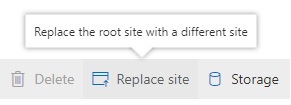
  • Replace the root site with a new site: If you already have a site that you want to use as your root site, or if you want to use a modern team site, replace (swap) the root site with it. This scenario is very useful if you plan to create a new site and let the old one live until you are ready. We can use the new SharePoint admin center to replace the root site. Select your root site (f.e. https://contoso.sharepoint.com) in the Active Sites menu in SharePoint Online Admin Center. Doing this you get the “Replace site” button in the menu:

Selecting this you get the following dialog:
And we can also use PowerShell to do the swap. Powershell offers the capability to manually set the url for the archive url and some further parameter:
Invoke-SPOSiteSwap
         -SourceUrl <string>
         -TargetUrl <string>
         -ArchiveUrl <string>
         [-DisableRedirection]  
      [<CommonParameters>]
  • Use the root site as it is but with a modern experience: If you want the content on your classic root site as it is but want to have the layout of a communication site, apply the communication site experience to the root site. This feature isn't available yet but is coming soon.
  • Continue using the classic team site but with modern pages library and a modern home page: If you want to continue using the classic team site, enable the modern site pages library experience and set a modern page as the home page of the root site. This gives users a modern team site experience with the left navigation.

Things to think about

Before you begin, make sure that…:
  • If you have "Featured links" on the SharePoint start page. You'll need to add them again after you replace the root site.
  • Review your source site about policies, permissions, and external sharing settings

Limitations:
You can use the following as a new root site:
    • Communication site (SITEPAGEPUBLISHING#0)
    • Modern team site that isn't connected to an Office 365 group (STS#3) | The root site can't be connected to an Office 365 group.
    • Classic team site (STS#0).

When plan to do a site swap the root site and the new site can't be hub sites or associated with a hub. You need to unregister it as a hub site, replace the root site, and then register it as a hub site again.